
Domain Name Analyzer Desktop User Guide
Using the Domain Workspace
What Is the Domain Workspace?
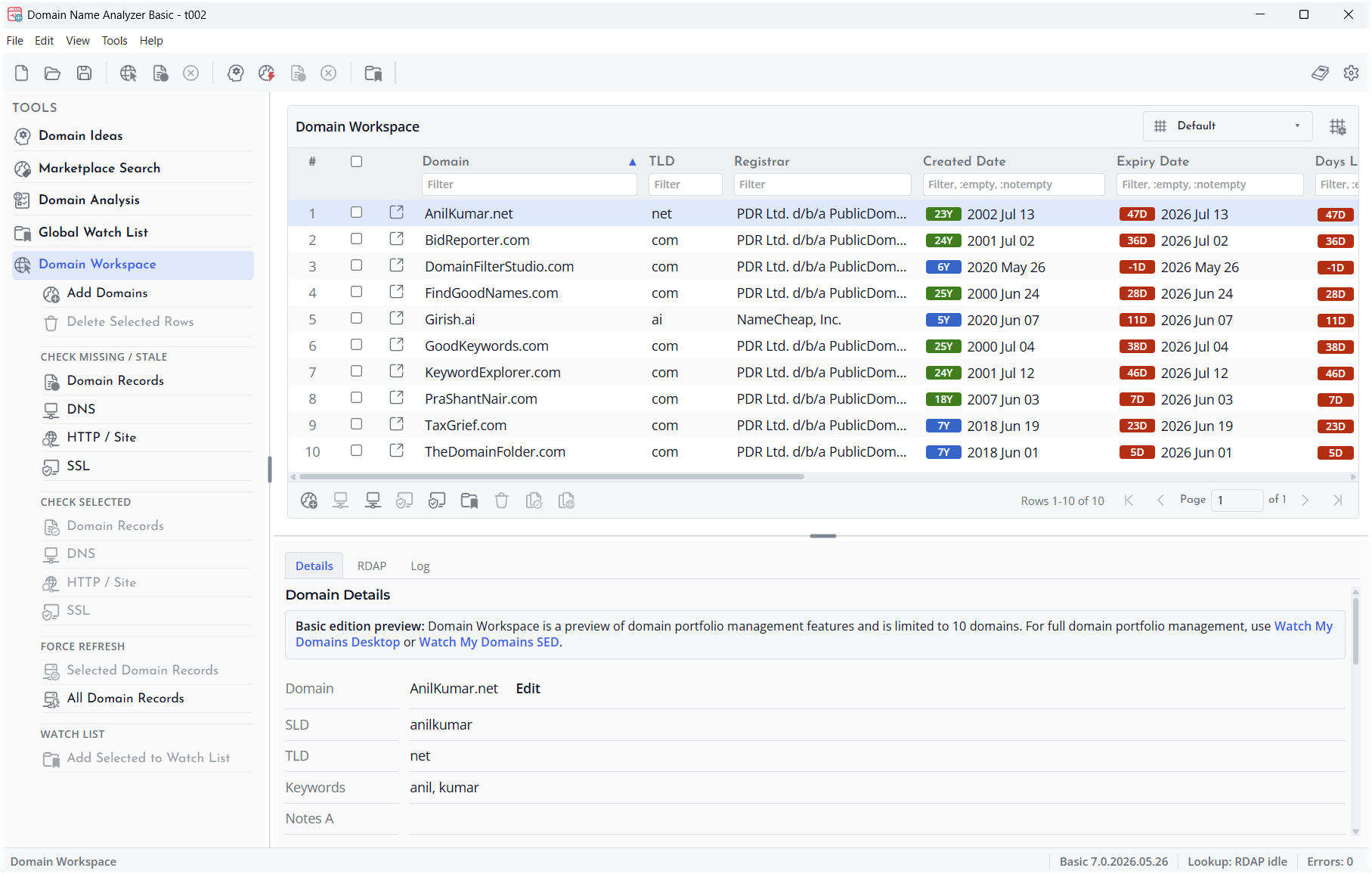
The Domain Workspace is the main area for tracking domains in a project. It is where you keep domains you want to monitor, review, enrich with lookup data, annotate, and export.
Basic edition limit: Domain Name Analyzer Desktop Basic allows up to 10 domains in the Domain Workspace. Business and Enterprise editions are intended for larger workspaces.
Use It for Tracked Domains
Add domains to the Domain Workspace when they are important enough to keep in the project. These may be domains you own, domains you are reviewing, domains you may register later, or domains you need to compare as part of a naming project.
How It Differs from Domain Ideas
Domain Ideas is for candidate generation and availability review. The Domain Workspace is for domains you want to keep as part of the project record. You can promote candidate domains from Domain Ideas into the Domain Workspace when they become worth tracking.
What You Can Store
The Domain Workspace can include normalized domain names, display domains, lookup status, registration-related data, DNS summary fields, notes, and other useful review fields. Some fields are filled by lookups, while others are entered or edited by you.
Checking DNS, HTTP / Site, and SSL
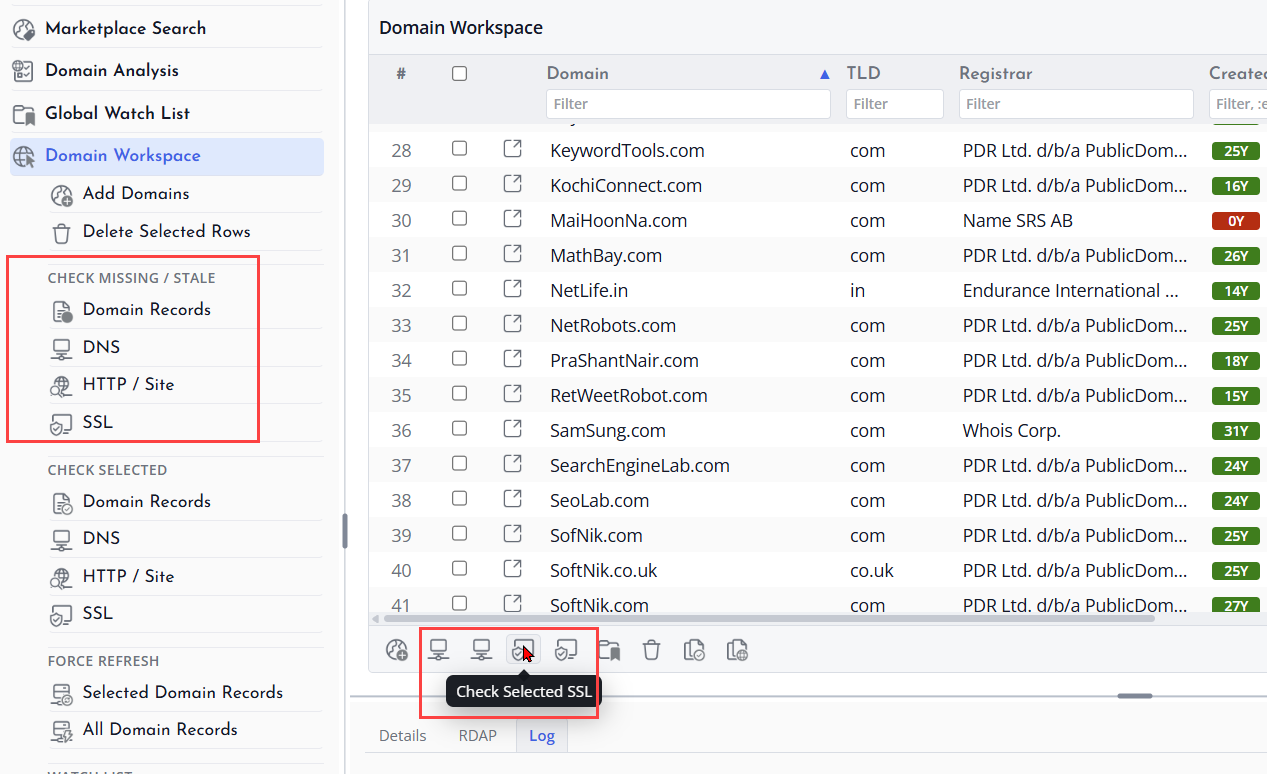
In addition to domain-record lookups, the Domain Workspace can run DNS, HTTP / Site, and SSL checks for tracked domains. Use these checks when you want to see whether a domain resolves, whether it has mail records, whether a website responds, where it redirects, and whether certificate information is available.
DNS Results in the Workspace
DNS checks can fill summary fields such as DNS Check, Root IPv4, Root IPv6, Domain MX, DNS Error, and Last DNS Check. Use these fields to quickly identify domains that resolve, domains with mail records, and domains where the DNS check could not return useful data.
HTTP / Site Results in the Workspace
HTTP / Site checks follow the domain root landing page and record website response details such as HTTP / Site Status, HTTP Code, Final Host, Final URL, Redirect Count, Site TLS, Last HTTP / Site Check, and HTTP / Site Error. Use these fields to see whether a domain appears to have a reachable website and where visitors may be redirected.
SSL Results in the Workspace
SSL checks can fill SSL Status, SSL Valid From, SSL Valid To, Last SSL Check, and SSL Error. Certificate-related fields help you identify domains with current certificates, expired certificates, missing certificate data, or TLS problems that need review.
Keep the Workspace Focused
Use the workspace for domains that matter to the current project. If you are exploring many possible names, start in Domain Ideas and move only the stronger candidates into the Domain Workspace.
Adding Domains
You can add domains to the Domain Workspace by entering them manually, pasting a list, importing from a file, or moving selected candidates from Domain Ideas.
Open the Add Domains Dialog
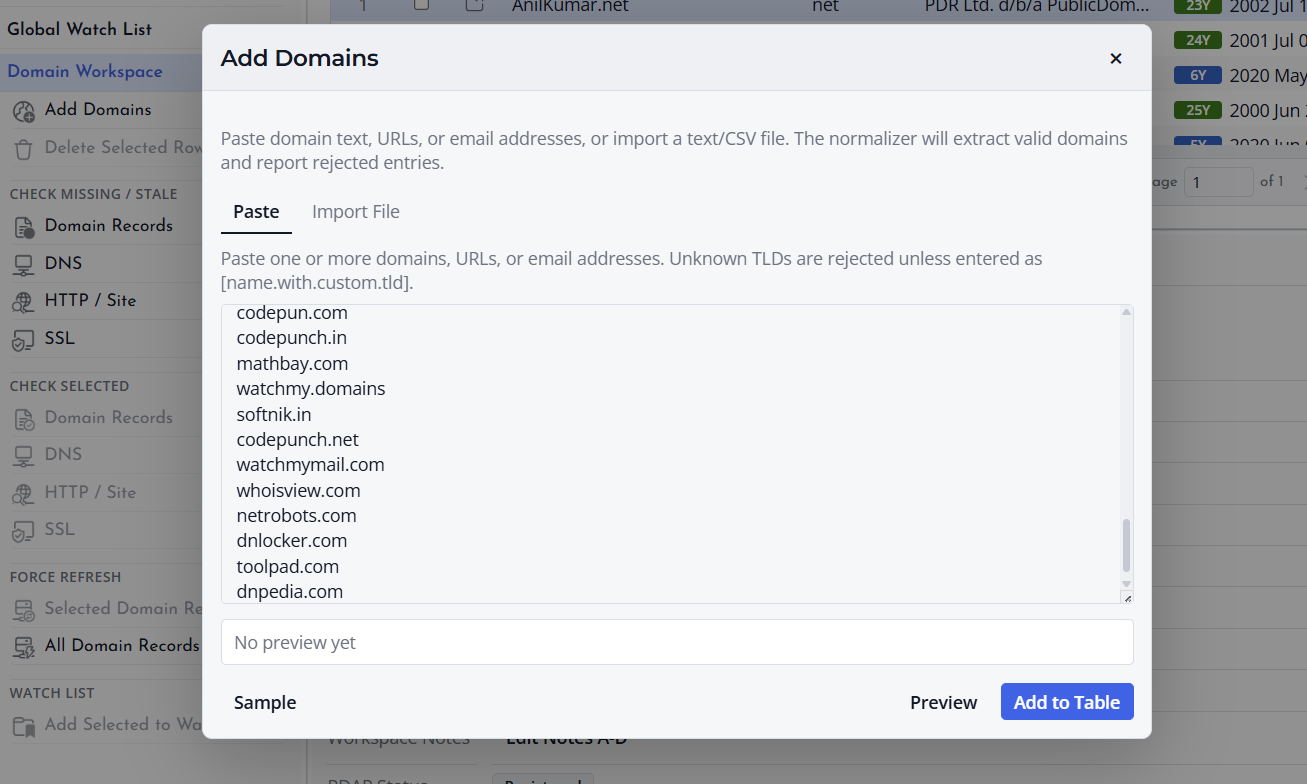
Use the add-domain workflow when you already know the domains you want to track. The Add Domains dialog provides different ways to add domains, including manual entry, pasted text, and file import.
Enter or Paste Domains
Use the manual entry option when you want to type one domain or paste a short list. Pasted text may include domains copied from emails, spreadsheets, web pages, notes, or mixed text. The application extracts domain-like values, normalizes them, and prepares them for review.
Import Domains from a File
Use the import tab in the Add Domains dialog when you already have a domain list in a plain text, CSV, or TSV file. Select the file, review the preview, and then add the accepted domains to the workspace.
Review Accepted and Rejected Entries
Always review the preview before adding domains to the workspace. The preview helps you catch duplicates, invalid entries, unexpected text, and domains that were rejected during cleanup.
Rejected entries are lines or values that cannot be safely treated as valid domains. They may be blank, incomplete, missing a recognizable TLD, or contain text that does not clearly identify a domain. If many entries are rejected, clean up the source text or file and try again.
Move Candidates from Domain Ideas
When a candidate domain becomes important, add it to the Domain Workspace from Domain Ideas. This keeps exploratory names separate from the domains you want to track in the project.
What Happens After Adding
After domains are added, they appear in the Domain Workspace table. You can sort, filter, edit supported fields, add notes, run lookups, and export results.
