
Domain Name Analyzer Desktop User Guide
General Preferences, Appearance, and Project Options
Opening Preferences
What preferences control
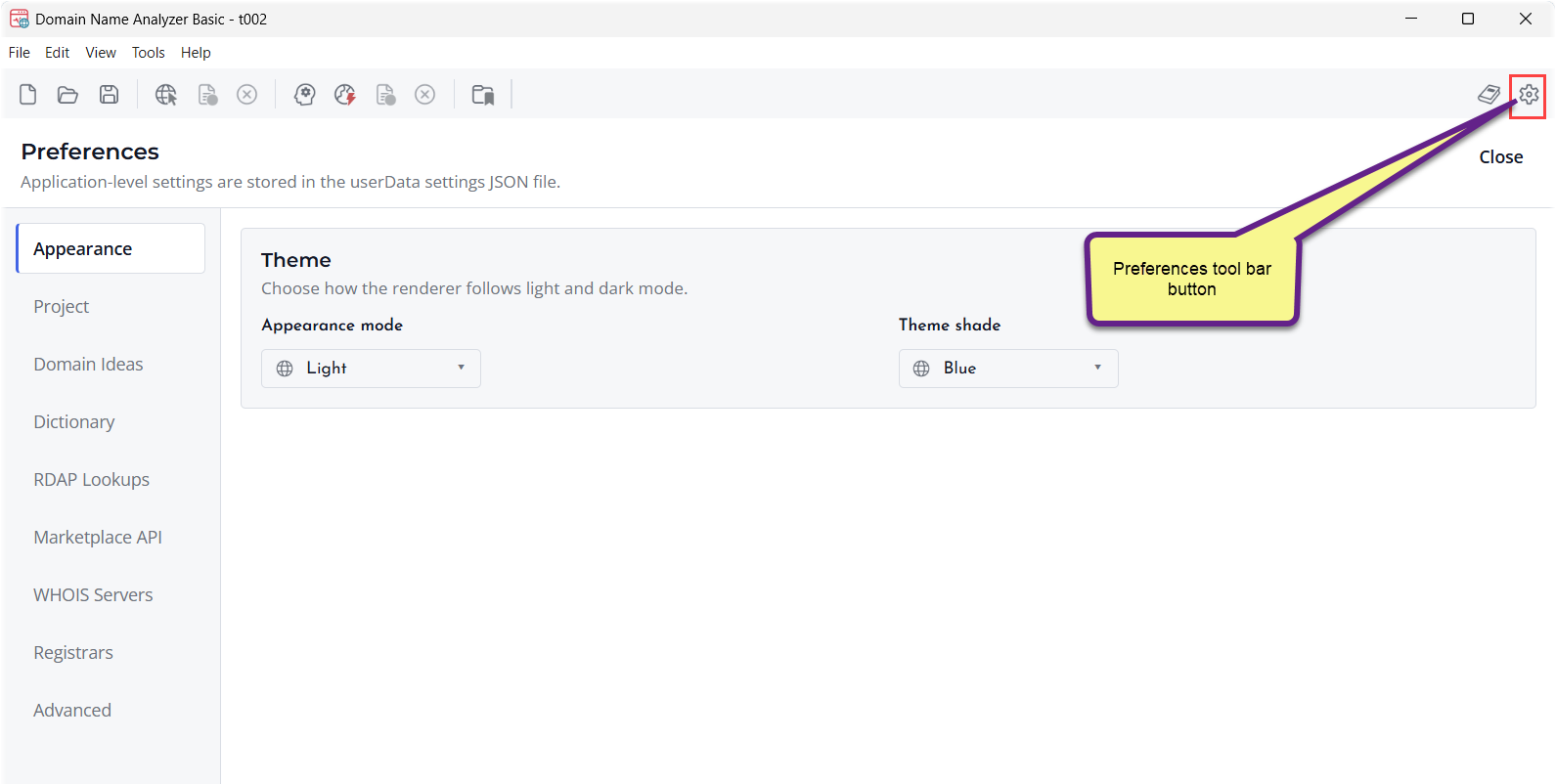
Preferences let you adjust application behavior, appearance, startup behavior, project saving behavior, generators, lookup settings, Marketplace API access, registrar links, and related options.
Open Preferences
Open Preferences from the application menu or the relevant toolbar or settings entry, depending on your operating system and window layout. Changes usually apply to the current application profile and may affect future projects or lookups.
Changing settings safely
Review each setting before changing it. Lookup-related preferences can affect speed, retries, and how often online services are contacted. Project and startup settings can affect how files open and save.
Appearance, Light Mode, Dark Mode, and Follow System
Choosing an appearance
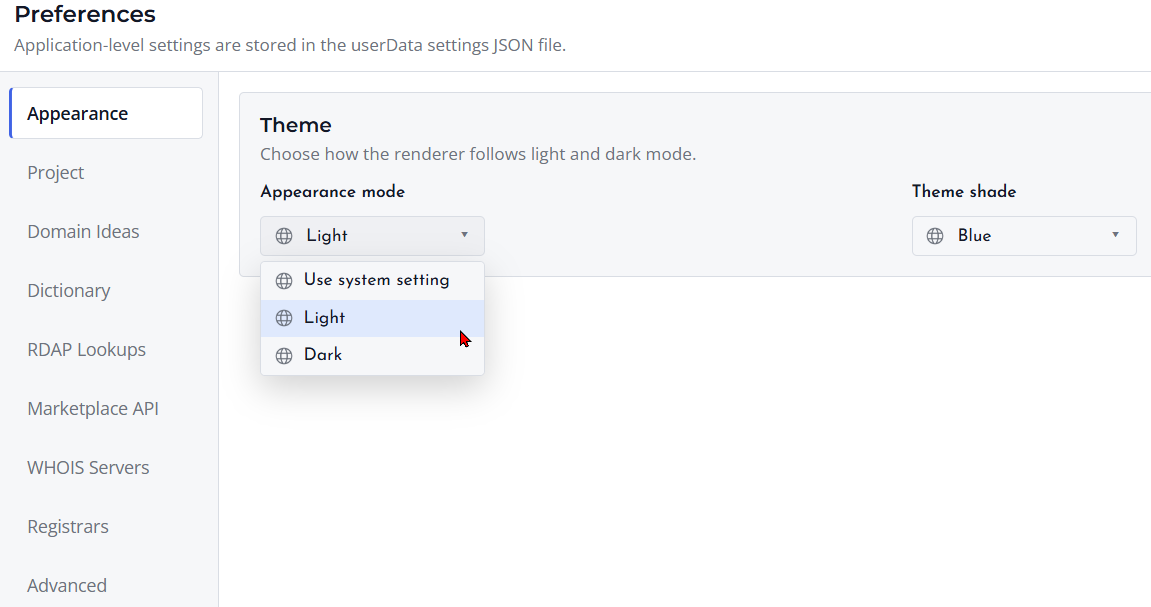
Domain Name Analyzer Desktop supports light mode, dark mode, and following the system appearance. Follow System uses the appearance selected in your operating system when the application starts or when the setting is applied.
When to use each option
Use Light Mode for a brighter workspace, Dark Mode for a darker interface, and Follow System when you want the application to match your operating system preference.
Effect on projects
Appearance settings affect how the application looks. They do not change the contents of your .dna project files or domain data.
Theme Shades
What theme shades do
Theme shades adjust the visual accent and overall color treatment of the application. They are intended to make the workspace more comfortable while keeping the same features and layout.
Light and dark variants
Theme shades may have light and dark variants depending on the selected appearance. If you use Follow System, the application can use the matching variant for the current system appearance.
Choosing a shade
Select the shade that gives the best contrast and comfort for your workspace. The setting affects the interface appearance only and does not change project data.
Startup Options
What startup options control
Startup options control what Domain Name Analyzer Desktop does when it opens. Depending on your settings, the application may open to an empty workspace, reopen a recent project, or use another configured startup behavior.
Choosing a startup behavior
Choose the behavior that fits how you work. If you usually continue from the same project, reopening recent work may save time. If you often start separate tasks, a clean start may be easier.
Project safety
Startup options do not replace saving. Save important project changes before closing the application so your .dna project file contains the latest work.
Project Saving Options
What saving options affect
Project saving options control how Domain Name Analyzer Desktop handles project save behavior, reminders, and related workflow preferences. These settings help you manage changes in .dna project files.
Working with unsaved changes
When a project has unsaved changes, save the project before closing the application, opening another project, or relying on the file for backup or transfer. If prompted about unsaved changes, choose the option that matches what you want to keep.
Save and Save As
Use Save to update the current project file. Use Save As when you want to create a separate copy with a different name or location.
