Domain Name Analyzer Desktop User Guide
Project Files and Diagnostics
Understanding .dna Project Files
Domain Name Analyzer Desktop stores your work in project files with the .dna file extension. A project file keeps the domains you add, candidate domains, lookup results, notes, and related project data together so you can close the application and continue later.
What a Project File Contains
A .dna project file contains the domain lists and project data that belong to one workspace. This includes tracked domains in the Domain Workspace, candidate domains in Domain Ideas, Global Watch List entries that have been added to the project workflow, rejected import entries, lookup status, and saved lookup data.
The project file is designed for normal desktop use. You can create separate files for different customers, brands, research tasks, domain portfolios, or naming projects.
Where to Save Project Files
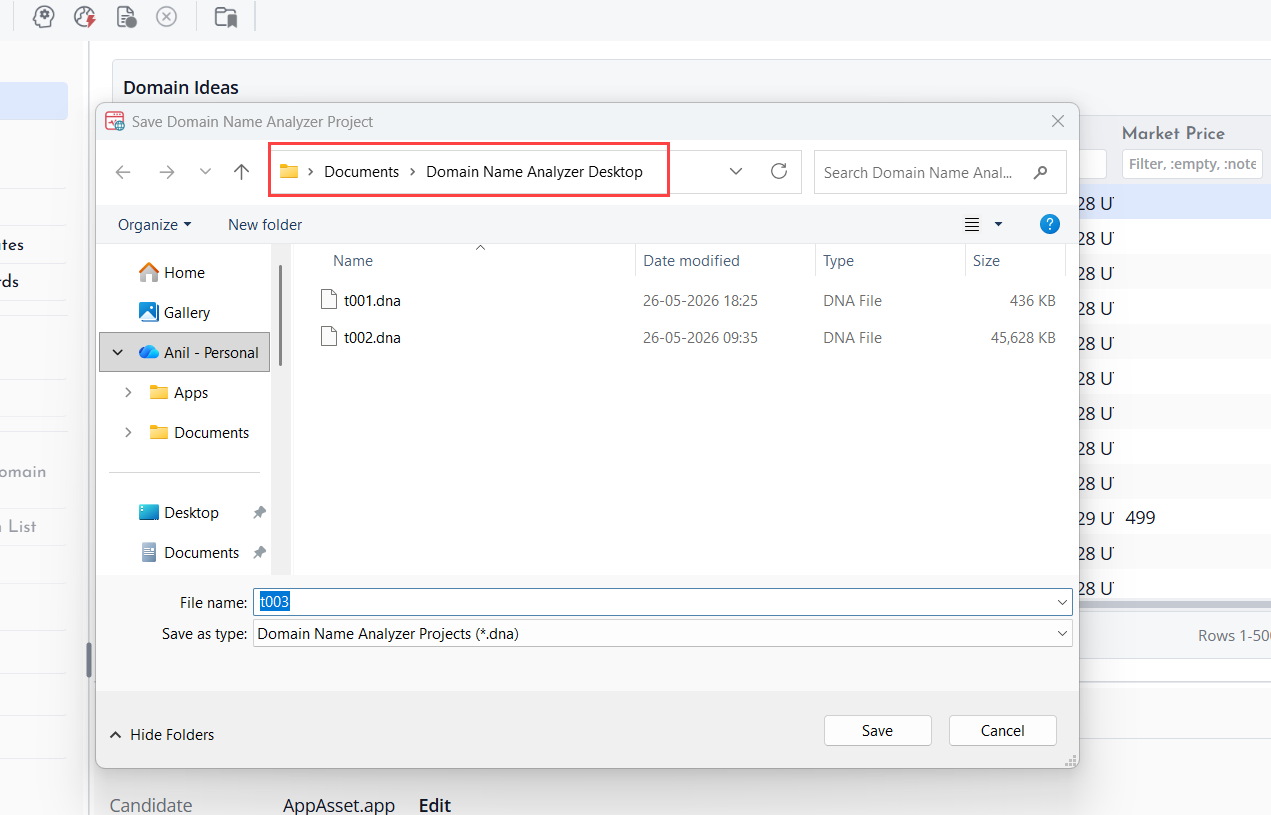
Save project files in a location that is easy to back up, such as your Documents folder or a dedicated folder for domain research. Use meaningful names so you can recognize the project later.
Moving and Backing Up Projects
You can copy a .dna project file like any other desktop document. If you use cloud backup or versioned backups, include your .dna files so your domain research and lookup history are protected.
When to Create a Separate Project
Create a separate project when the domain list belongs to a different client, campaign, brand, research topic, or workflow. Keeping unrelated work in separate project files makes filtering, exporting, and reviewing results easier.
Project Diagnostics
Project Diagnostics is a read-only check that helps you review the health and contents of the current project. It is useful when you want to confirm that the project has loaded correctly or when you are troubleshooting unusual project behavior.
Opening Project Diagnostics
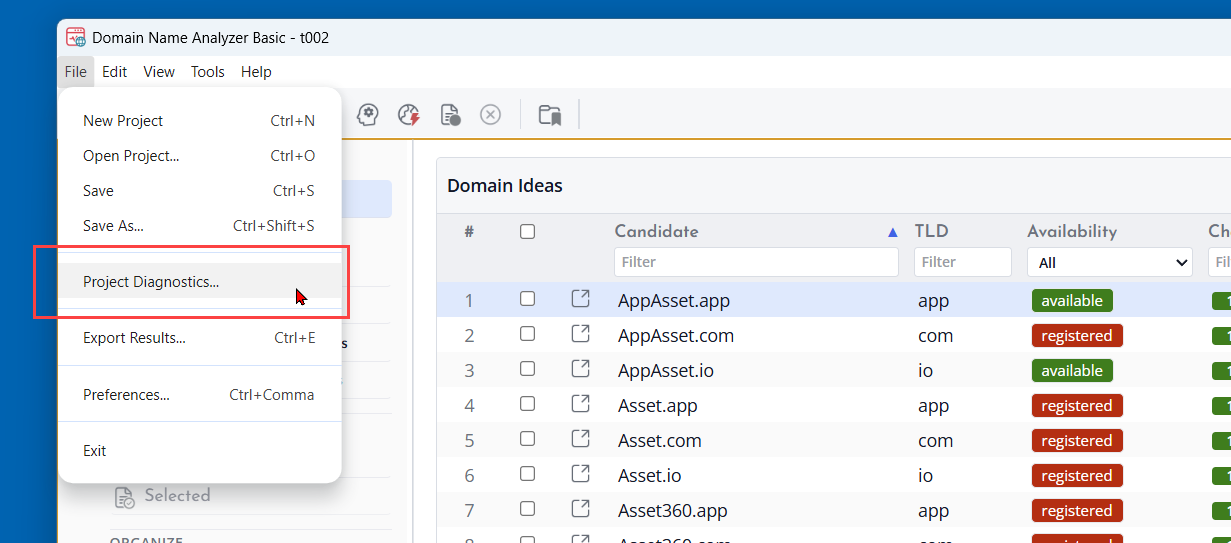
Open the File menu and choose Project Diagnostics. The diagnostics window summarizes the current project without changing any project data.
What Diagnostics Shows
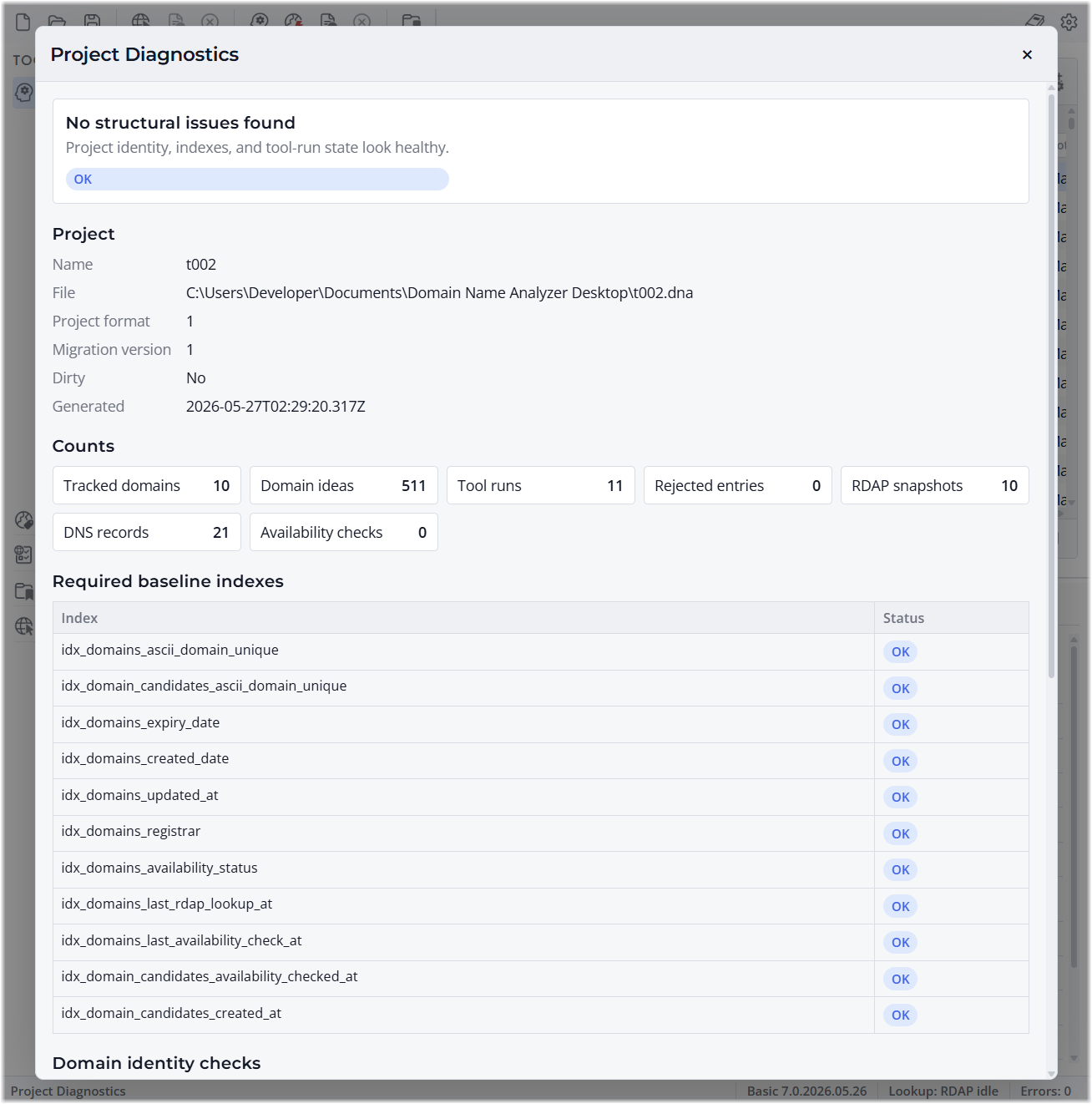
The diagnostics view can show project information, row counts, structural checks, duplicate identities, candidate and tracked domain conflicts, missing domain identity data, running lookup work, and recent failed tool runs.
Use this information to understand whether the project looks healthy or whether some entries need review. A diagnostic warning does not always mean data is lost. It usually means the project contains something that should be checked before continuing.
Reviewing Counts
The counts section helps you confirm how much data the project contains. You can use it to check the number of tracked domains, candidate domains, rejected entries, lookup records, and other stored project items.
What to Do After a Warning
If Project Diagnostics recommends review, inspect the affected rows or retry the relevant lookup task. If the issue appears after importing data, review rejected entries and duplicate domains first.