
Domain Name Analyzer Desktop User Guide
Main Window, Menus, and Workspace Panes
Understanding the Main Window
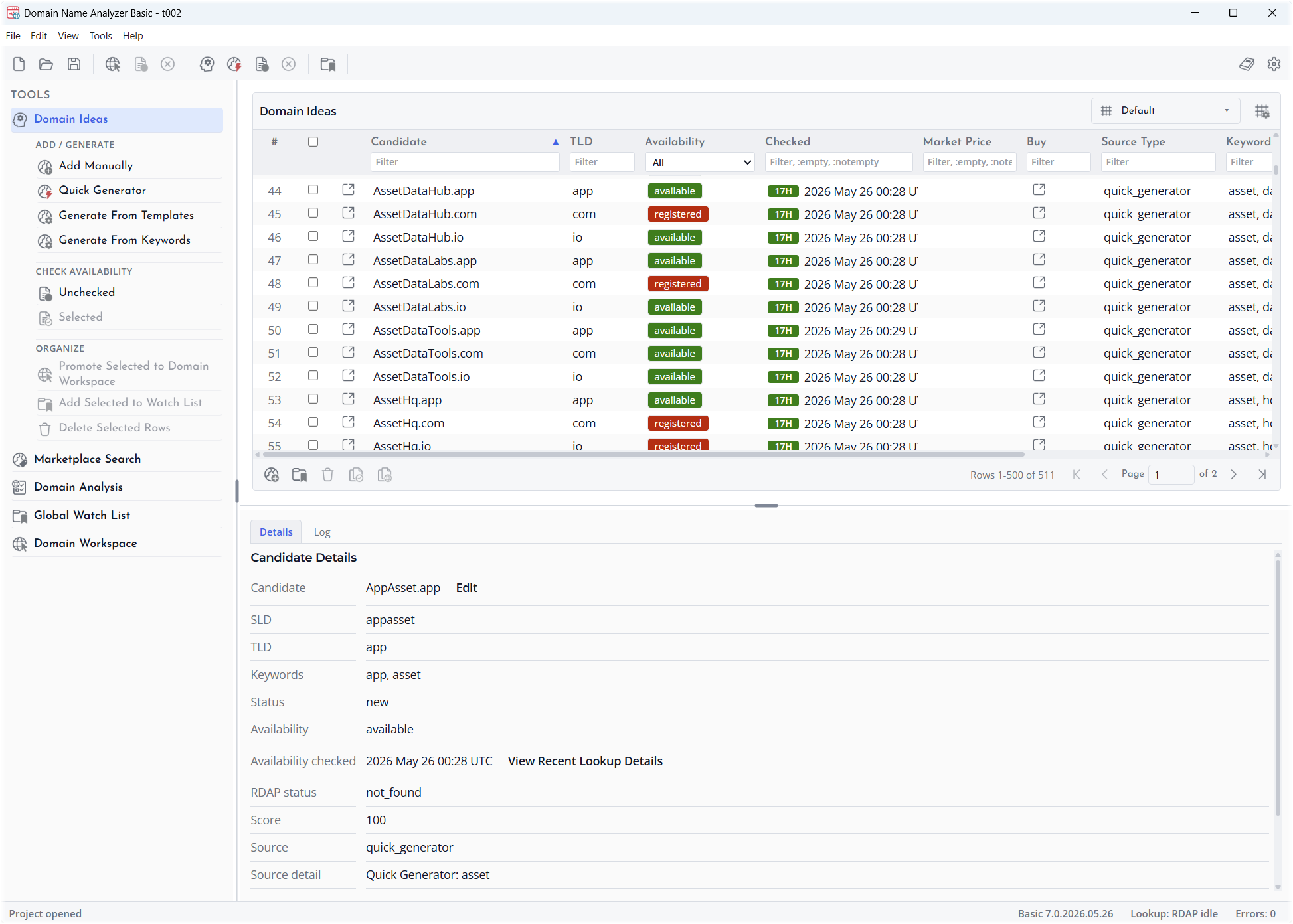
Domain Name Analyzer Desktop opens into a workspace designed for moving between domain lists, idea generation, lookup results, and supporting details without leaving the main window.
Main Areas
The main window contains a menu bar, a toolbar, a left tools pane, a main workspace area, a details pane, and a status bar. The exact tools shown can vary by edition and by the currently open project, but the overall layout stays consistent.
Tools Pane
The left tools pane is used to switch between major work areas such as Domain Workspace, Marketplace Search, Domain Analysis, Domain Ideas, and Global Watch List. Some entries expand to show common actions, such as adding domains, moving marketplace results, running analysis, running lookups, or checking candidate domains.
Main Workspace
The main workspace is where the active table or tool appears. For example, Domain Workspace shows tracked domains, Marketplace Search shows secondary-market listing results, Domain Analysis shows saved analysis results or a domain analysis form, Domain Ideas shows candidate domains, and Global Watch List shows app-wide watch entries.
Details Pane
The details pane shows extra information for the selected row. Depending on the current table, it may show domain details, lookup details, notes, raw data summaries, or messages about the selected item.
Status Bar
The status bar gives brief feedback about the current action, such as a saved project, an opened view, an import result, or a lookup operation.
Menus, Toolbar, Status Bar, and Workspace Panes
Domain Name Analyzer Desktop provides several ways to reach the same tasks. You can use the menus for complete access, the toolbar for common commands, and the tools pane for workflow-focused navigation.
Menus
The File menu contains project commands such as New Project, Open Project, Save, Save As, Project Diagnostics, Export Results, Preferences, License & Registration, and Exit on Windows. On macOS, some application-level commands may appear in the application menu instead.
The Tools menu groups domain workflows. Domain Workspace commands include showing the workspace, adding domains, deleting selected rows, checking missing or stale domain records, checking DNS, checking HTTP / Site, checking SSL, forcing domain-record refreshes, adding selected rows to the Global Watch List, clearing tracked domains, and exporting results. Domain Ideas commands include showing Domain Ideas, adding candidates manually, using Quick Generator, generating from templates or keywords, checking availability, canceling availability checks, promoting candidates, adding selected candidates to the Global Watch List, and deleting selected rows.
The Tools menu also includes Domain Analysis, Marketplace Search, and Global Watch List. Domain Analysis commands open one-domain analysis and saved analysis results. Marketplace Search commands open secondary-market search and send selected listing rows to Domain Ideas, Domain Workspace, or the Global Watch List. Global Watch List commands add, edit, delete, transfer, and export app-wide watch entries.
The View menu controls appearance, including Light Mode, Dark Mode, Follow System, theme shade choices, and fullscreen where supported. The Help menu links to the home page, technical support, shop page, version information, documentation, and About Domain Name Analyzer.
Toolbar
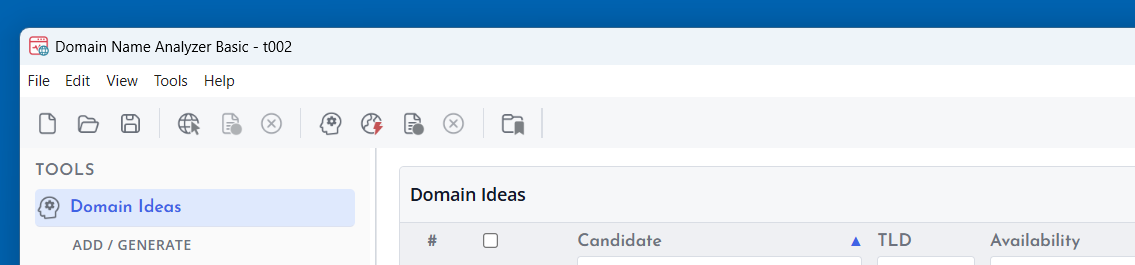
The toolbar provides quick access to frequent actions such as New Project, Open Project, Save Project, Domain Workspace, domain-record lookup actions, Domain Ideas, Quick Generator, Check Unchecked, Cancel Availability, Marketplace Search, Domain Analysis, Global Watch List, Documentation, and Preferences.
Status Bar
The status bar displays short messages after actions complete or when a view changes. It is useful for confirming that a command was received without interrupting your workflow.
Workspace Panes
The workspace uses a left navigation pane and a main right work area. The right side is split between the active table or tool and a lower details area. This lets you review rows and supporting information in the same window.
