
Domain Name Analyzer Desktop User Guide
Working with Tables, Columns, and Details
Sorting, Filtering, and Selecting Rows
Tables are used throughout Domain Name Analyzer Desktop. You will see them in the Domain Workspace, Domain Ideas, Global Watch List, and other views. Learning the basic table controls makes it easier to review and manage domain data.
Sorting Rows
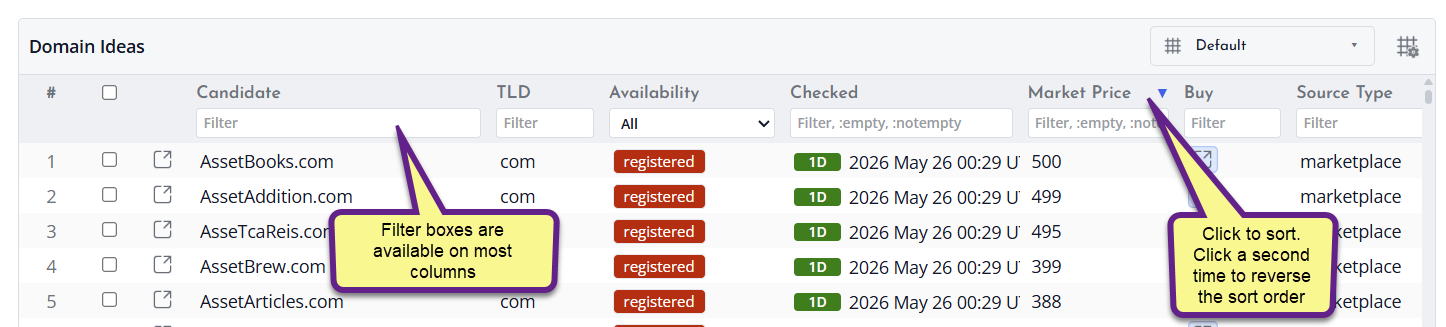
Click a column header to sort the table by that column. Sorting is useful for grouping domains by status, expiry date, registrar, TLD, lookup result, or other visible fields.
Filtering Rows
Use the filter boxes in the table header area to narrow the visible rows. Filtering helps you focus on matching domains, statuses, TLDs, registrars, notes, or other text shown in the table.
Selecting Rows
Select rows when you want to apply an action to specific domains. Depending on the view, selected rows can be used for actions such as lookup, export, delete, promote, copy, or open registrar links.
Using Checkboxes
Some tables include checkbox selection in addition to normal row selection. Use checkboxes when you want to build a set of rows for a later action while continuing to browse or filter the table.
Combining Sort, Filter, and Selection
You can sort and filter first, then select the rows you want to act on. This is often the fastest way to export a focused set of results or clean up a specific group of domains.
Using Column Views
Column views let you switch between different sets of columns in a table. They help you focus on the information needed for the current task without permanently changing the underlying project data.
Why Column Views Are Useful
A domain project can contain many types of information. A column view can show a smaller group of fields for a specific purpose, such as reviewing domain identity, lookup status, registration dates, notes, or candidate availability.
Switching Views
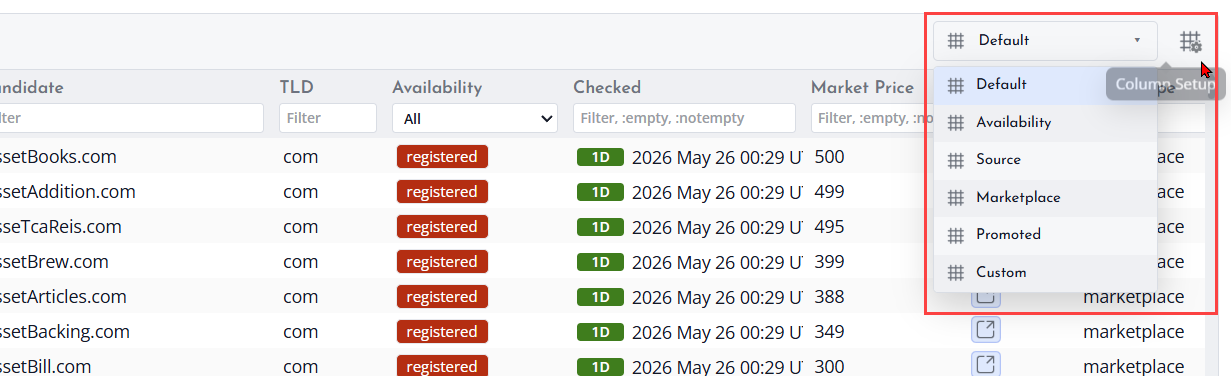
Use the column view control in the table area to switch to another available view. The table updates to show the columns for that view while keeping the same project data.
Built-In Views
Built-in views provide practical starting points for common workflows. Use the view that best matches what you are doing, then sort or filter the visible columns as needed.
Column Views and Custom Columns
Column views work with column customization. You can use a built-in view as a starting point and then adjust visible columns for your preferred working style.
When to Change Views
Change views when the table feels crowded or when the information you need is not visible. For example, use a lookup-focused view when reviewing RDAP or availability results, and a notes-focused view when editing review notes.
Customizing Columns
Domain Name Analyzer Desktop tables are designed so you can focus on the fields that matter for the task you are doing. Column customization helps you reduce clutter, compare related values, and keep frequently used information visible.
Choose the Columns You Need
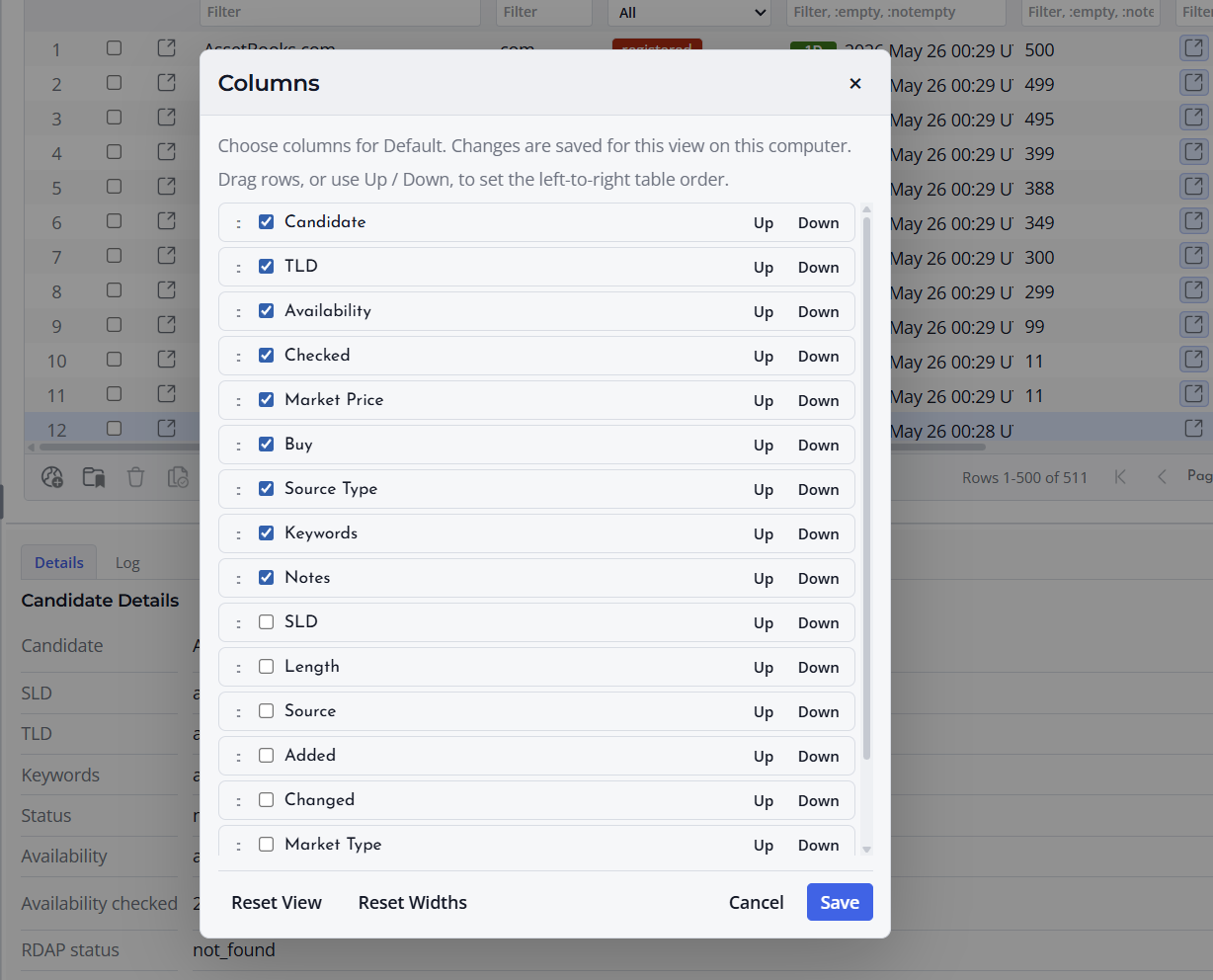
Use the column options for the current table to show or hide available fields. For example, when reviewing domain records, you may want to show expiry dates, registrar names, RDAP status, and notes. When reviewing candidate domains, you may prefer availability-related fields and candidate source information.
Resize Columns
Many tables allow column widths to be adjusted so longer values are easier to read. Drag the edge of a column header to make the column wider or narrower. Wider columns are useful for long domain names, registrar names, name server lists, and notes.
Keep Table Views Practical
Show only the columns you need for the current review. A compact table is easier to scan, sort, and filter. You can return to the column options later when you need additional details.
Column Choices and Projects
Column settings are intended to make the workspace more comfortable for your workflow. The visible columns do not change the stored domain records themselves. They only change how the current table presents the data.
Using the Details Pane
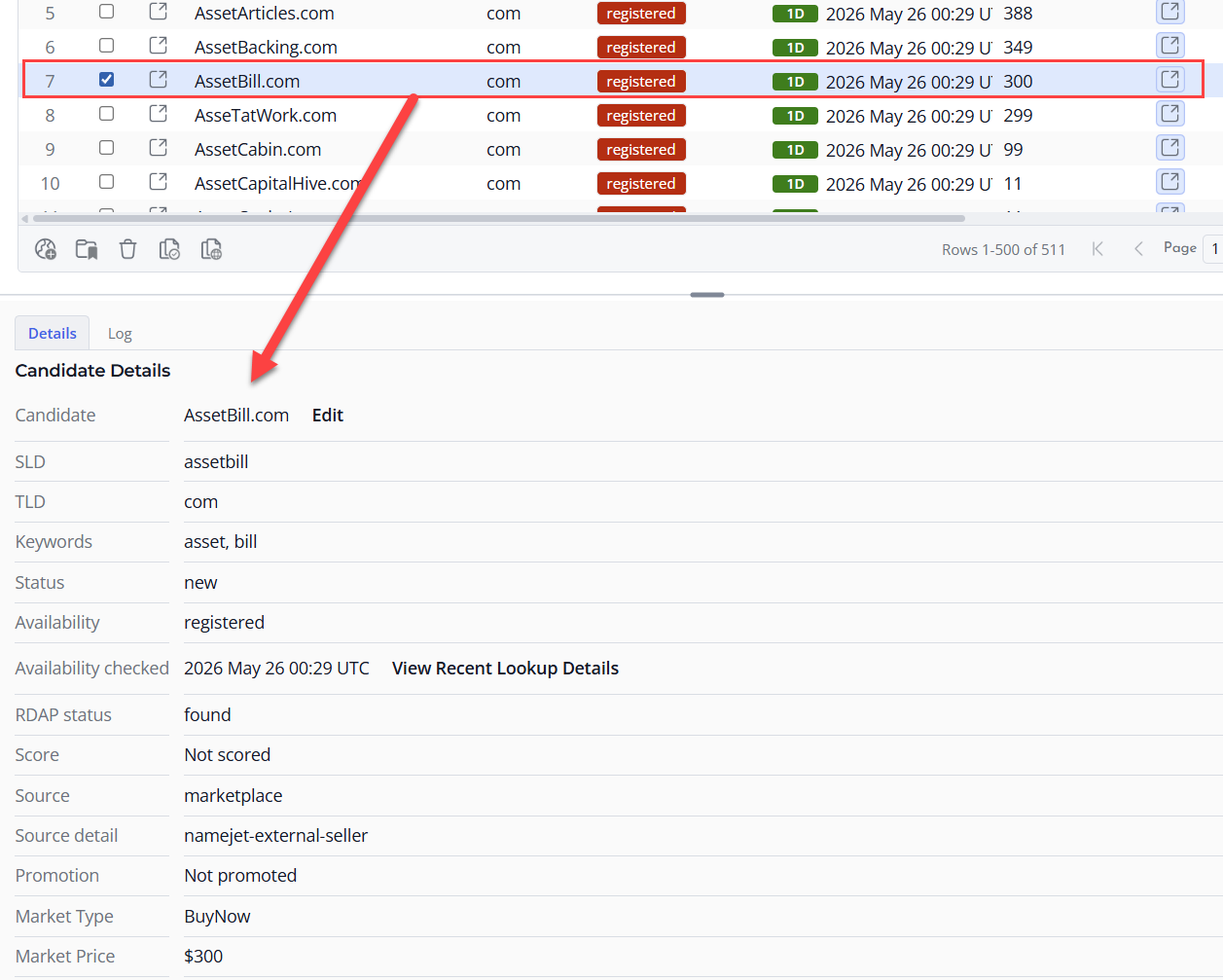
The Details pane shows additional information about the selected row in the current workspace. It is useful when a table row contains more information than can comfortably fit across the main table.
Select a Row to View Details
Click a row in the active table to view related details. Depending on the workspace and the selected item, the pane may show notes, lookup information, status details, raw lookup data, history, messages, or other review information.
Use Details Without Losing Table Context
The Details pane lets you inspect one domain or candidate while keeping the table visible. This is helpful when comparing records, checking why a lookup failed, or reviewing notes before making changes.
Review Lookup Information
For domain records with lookup data, the Details pane can help you inspect values such as registrar, dates, name servers, RDAP status, and raw data when available. Use this information to understand what was returned by the lookup rather than relying only on the summary columns.
Switch Rows as You Review
Move through table rows to update the Details pane. This lets you review several domains in sequence without opening separate windows for each record.
