
Domain Name Analyzer Desktop User Guide
Lookup Preferences and Recent Lookup Cache
RDAP Lookup Preferences
What These Preferences Control
RDAP lookup preferences control how Domain Name Analyzer Desktop checks registration data for domains. Recommended defaults include 15 simultaneous RDAP lookups, a per-RDAP-server safety cap of 5, a 10 second timeout, one retry, and a 30 day stale-data setting. Adjust these values only when your workflow requires different lookup behavior.
Open RDAP Settings
Open Preferences and go to the RDAP lookup area. Review the available settings before changing them, especially if you are working with large domain lists.
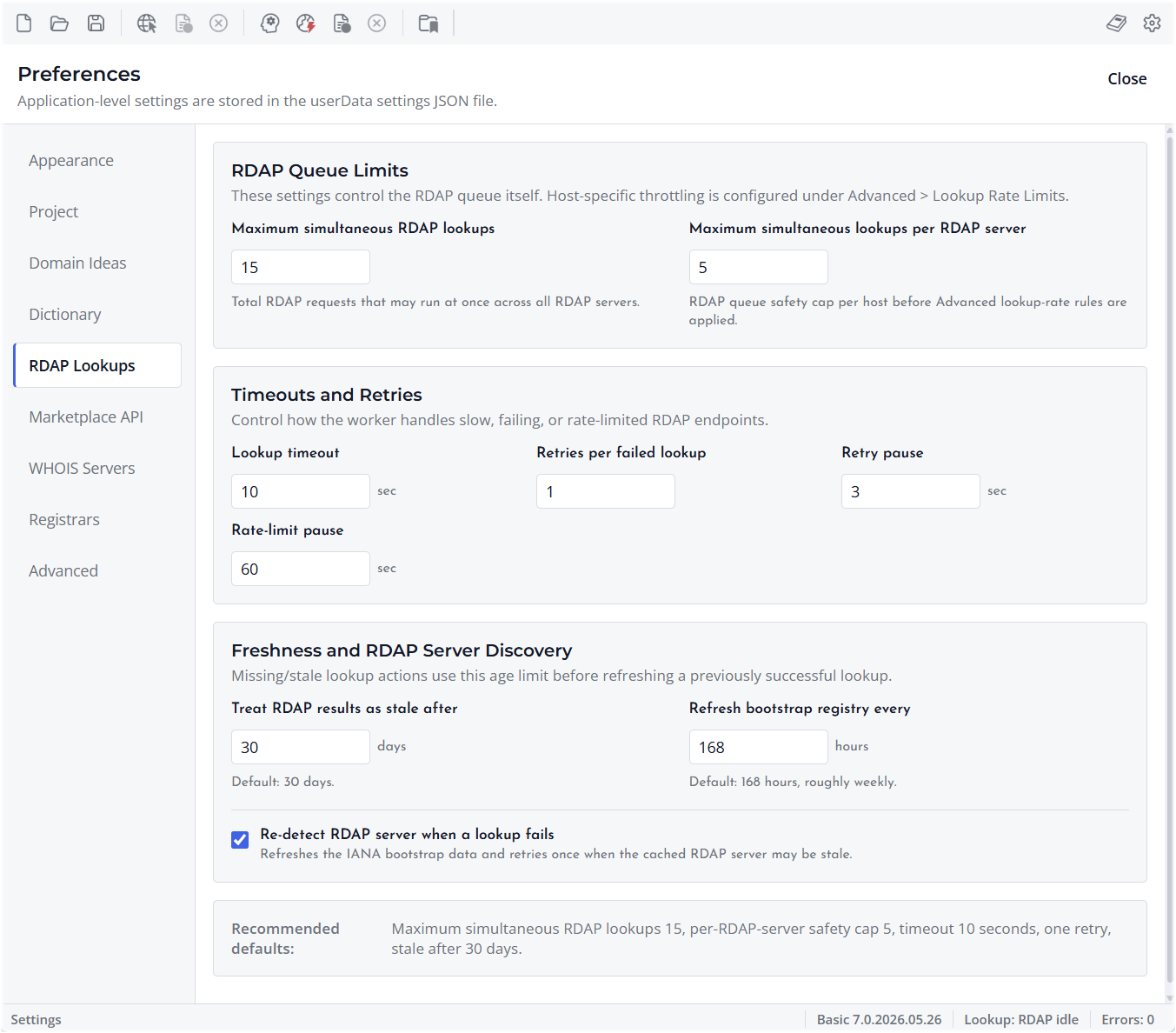
Use Balanced Settings
Conservative settings are safer for normal use. More aggressive settings may complete some batches faster, but they can also increase failed requests or temporary lookup errors.
Change Settings for Your Workflow
Adjust RDAP preferences when you need slower, more careful checks, or when you want to tune lookup behavior for a large project. Review lookup results after changing these settings.
WHOIS Server Registry
What the Registry Is
The WHOIS Server Registry stores server information used when WHOIS lookups are needed for supported TLDs. It helps the application know where to send lookup requests when RDAP is not enough or when a WHOIS path is used.
Open the Registry
Open Preferences and locate the WHOIS Server Registry. Review entries carefully before changing them because incorrect server information can cause lookup failures.
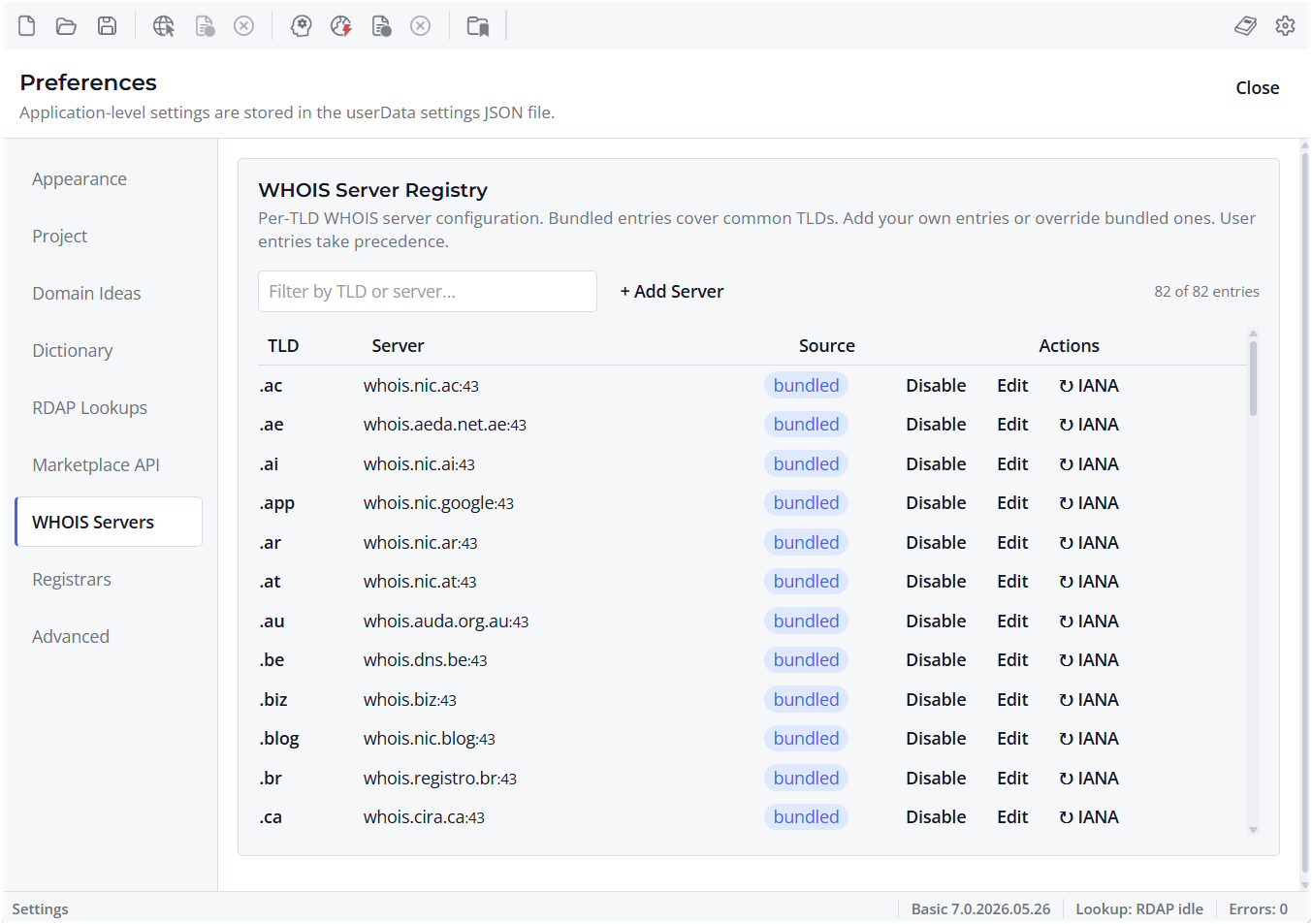
Edit Only When Needed
Most users should not need to edit WHOIS server settings often. Make changes only when you know the correct server for a TLD or when support guidance instructs you to update an entry.
Test After Changes
After editing a WHOIS server entry, run a lookup for a domain using that TLD and confirm that the result is reasonable.
Preferred Registrars
What Preferred Registrars Are
Preferred registrars are the registrar links you want to use when searching, checking, or reviewing domains outside the application. They make it easier to open a domain search at services you commonly use.
Open Registrar Preferences
Open Preferences and go to Preferred Registrars. Review the configured links and remove any services you no longer use.
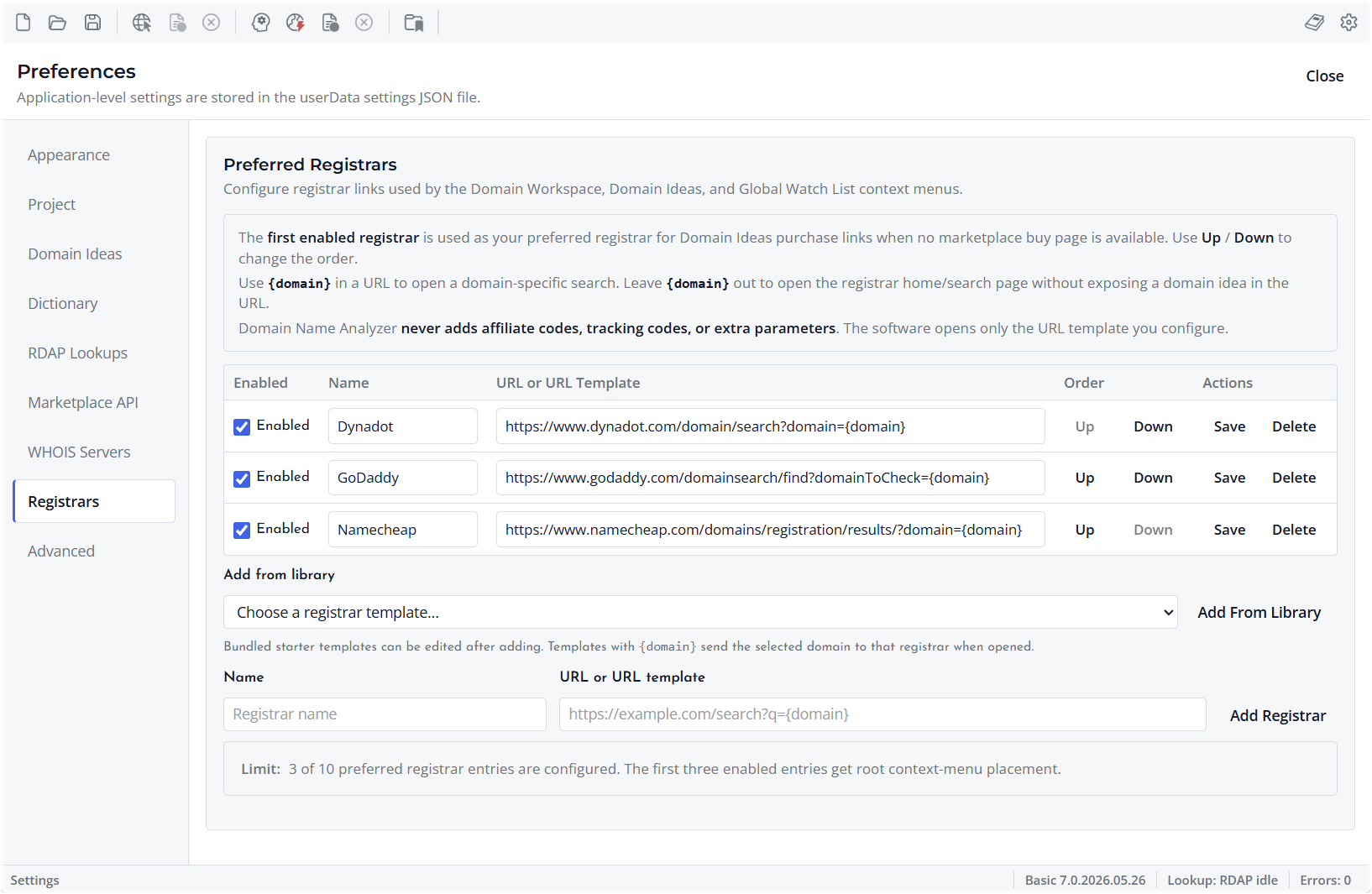
Keep Links Current
Registrar websites sometimes change their search URLs. If a link stops opening the expected search page, update the template or replace the entry.
Use Registrars From Domain Tables
After preferred registrars are configured, you can use them from supported domain table actions to open registrar searches for selected domains.
Lookup Concurrency, Timeouts, and Retries
What These Settings Mean
Concurrency controls how many lookup requests can run at the same time. Timeouts control how long a request can wait. Retries control whether a failed request is attempted again.
Use Conservative Defaults
For normal use, balanced settings are best. Very high concurrency or very short timeouts can create more failed lookups, especially when registries are slow or rate limited.
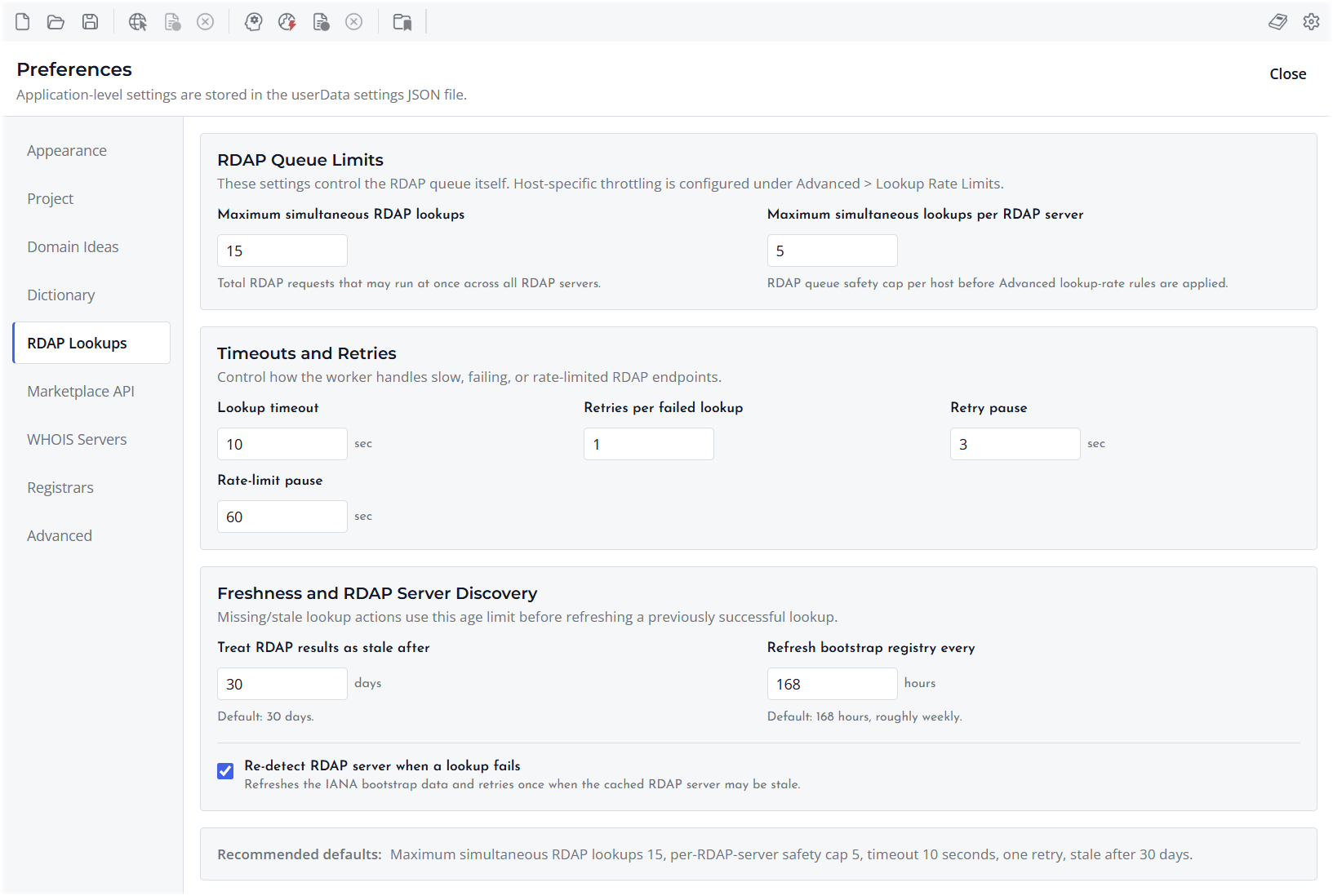
Adjust for Large Projects
If you work with large domain lists, tune these settings gradually. After each change, run a smaller lookup and review failures before using the settings on a large batch.
Understand Lookup Failures
A failed lookup does not always mean something is wrong with the domain. It can also reflect a temporary network problem, a slow registry response, or a rate limit.
Lookup Rate Limits
Why Rate Limits Matter
Lookup rate limits help prevent too many requests from being sent too quickly. They can reduce temporary failures and help keep lookup behavior reasonable when checking many domains.
Open Rate Limit Settings
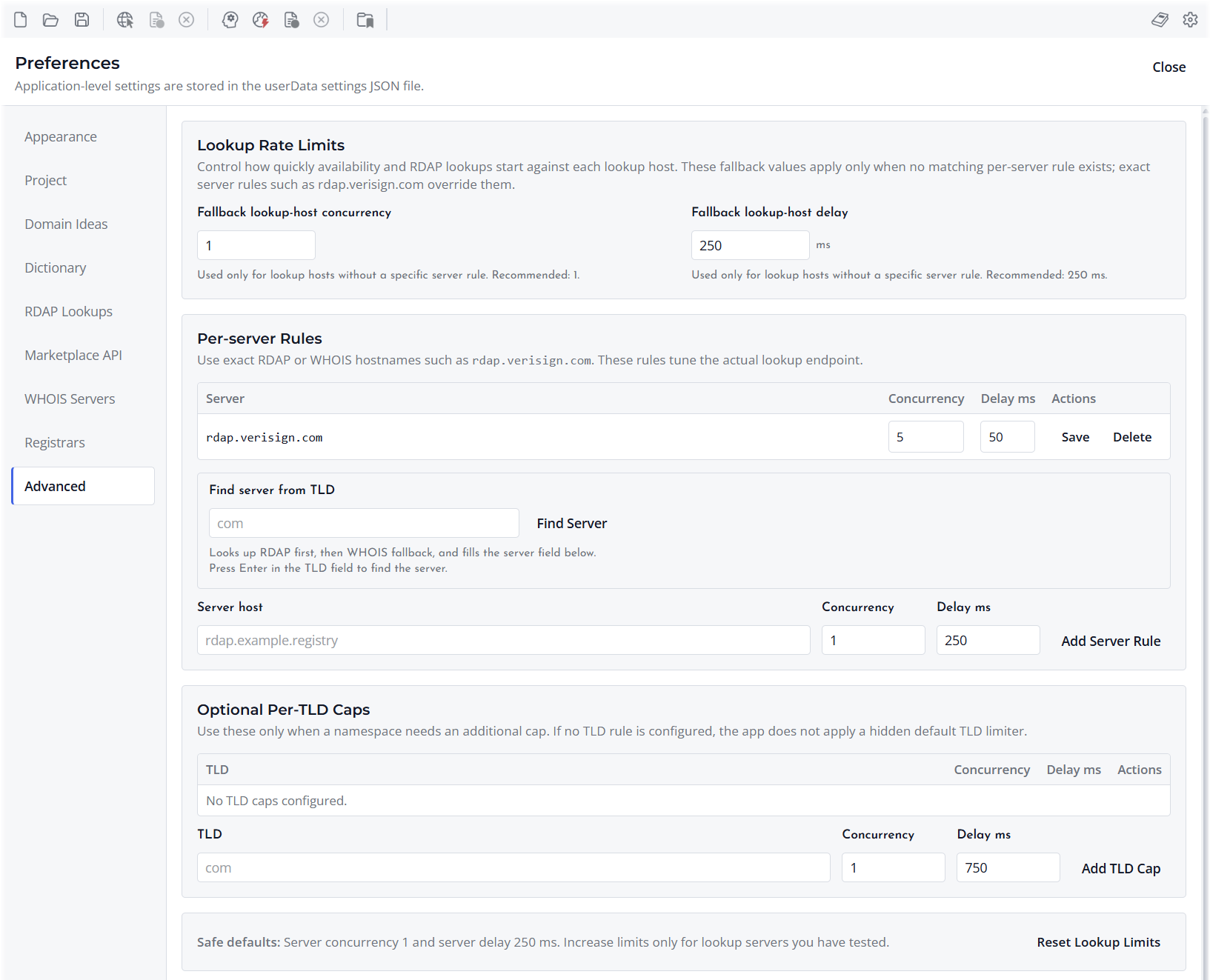
Open Preferences and review the Lookup Rate Limits area under Advanced settings. These settings are most relevant when you run large availability, RDAP, WHOIS, DNS, SSL, or HTTP / Site lookup batches.
Use Slower Settings for Reliability
Slower pacing can make large batches more reliable. Faster pacing may seem attractive, but it can increase failed requests if a registry or network service slows down or limits traffic. Per-server rules are usually the best place to tune lookup pacing because they apply to the actual RDAP or WHOIS host being contacted.
Finding a Server from a TLD
The Lookup Rate Limits area includes a Find Server from TLD helper. Enter a TLD such as com and choose Find Server to fill the server field from RDAP first, with WHOIS fallback when needed. Pressing Enter in the TLD field also runs the helper.
Optional Per-TLD Caps
Optional per-TLD caps are available for namespaces that need an additional safety limit. If no TLD rule is configured, Domain Name Analyzer Desktop uses the applicable server rule or fallback lookup-host rule instead of applying a hidden TLD limit.
Review Results After Changes
After changing rate limits, check the lookup status of completed rows. If failures increase, use more conservative settings.
Recent Lookup Cache
What the Cache Does
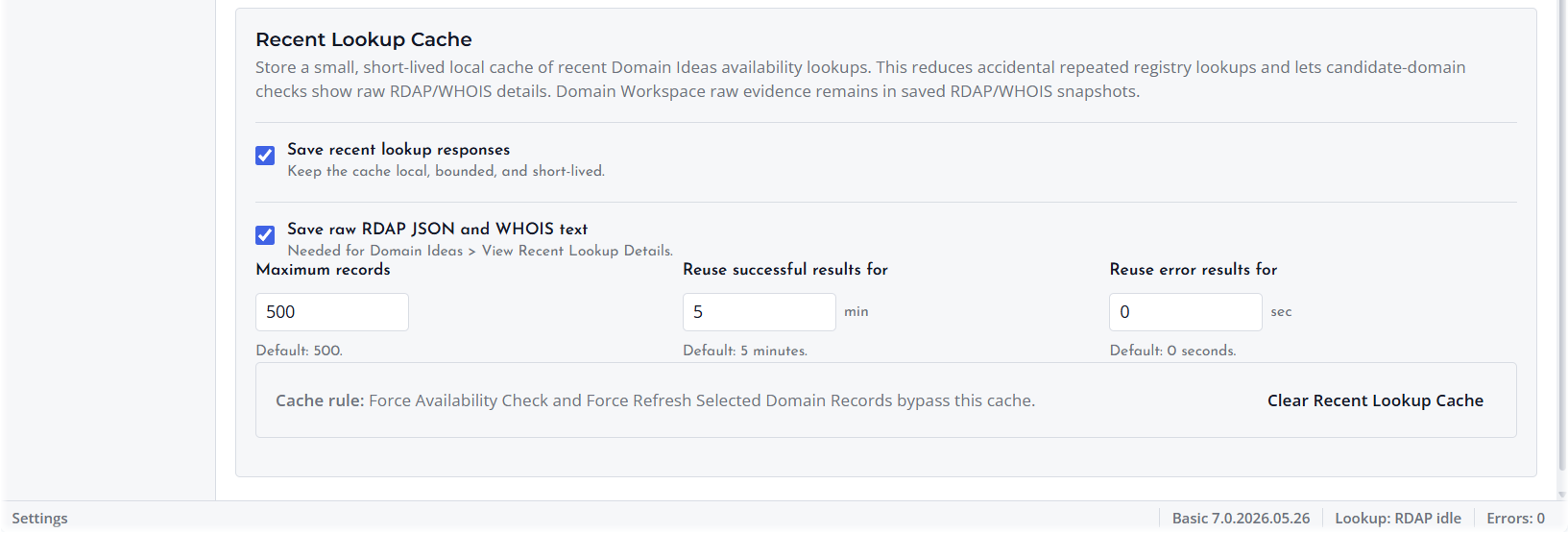
The Recent Lookup Cache helps avoid repeating the same lookup within a short time. Domain Ideas availability checks and Domain Workspace domain-record, DNS, SSL, and HTTP / Site checks can reuse suitable recent results during normal review work.
Why It Is Short-Term
The cache is meant for recent lookup reuse, not permanent evidence. It keeps lookup work efficient while still allowing fresh checks when needed.
Use Force Actions for Fresh Results
When you need a fresh lookup, use a force refresh or force availability action where available. Force actions are intended for situations where cached results should not be reused, although fresh results from a force action may still be saved for later normal checks.
Clear the Cache When Needed
Clear the recent lookup cache if you want to discard short-term saved responses before checking domains again.
