
Domain Name Analyzer Desktop User Guide
Copying, Exporting, and Working with Table Data
Copying and Exporting Table Data
Domain Name Analyzer Desktop lets you copy and export table data so you can use it in spreadsheets, reports, emails, registration checks, and other tools.
Copy Rows from a Table
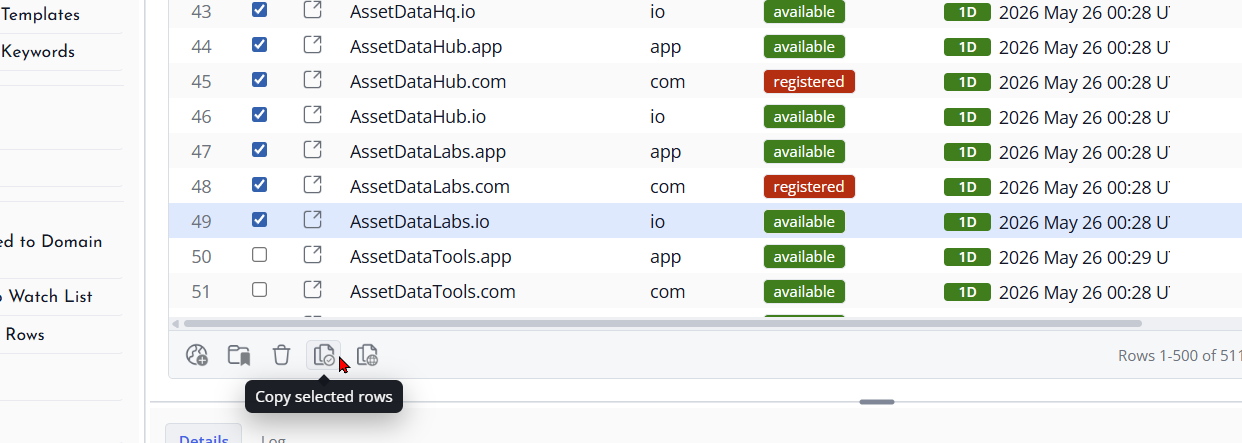
When a table supports copying, select the rows you want and use the available copy command. Copying selected rows is useful when you only need a small group of domains, such as domains expiring soon, candidate names that need review, or records you want to share with someone else.
Copy Domain Lists
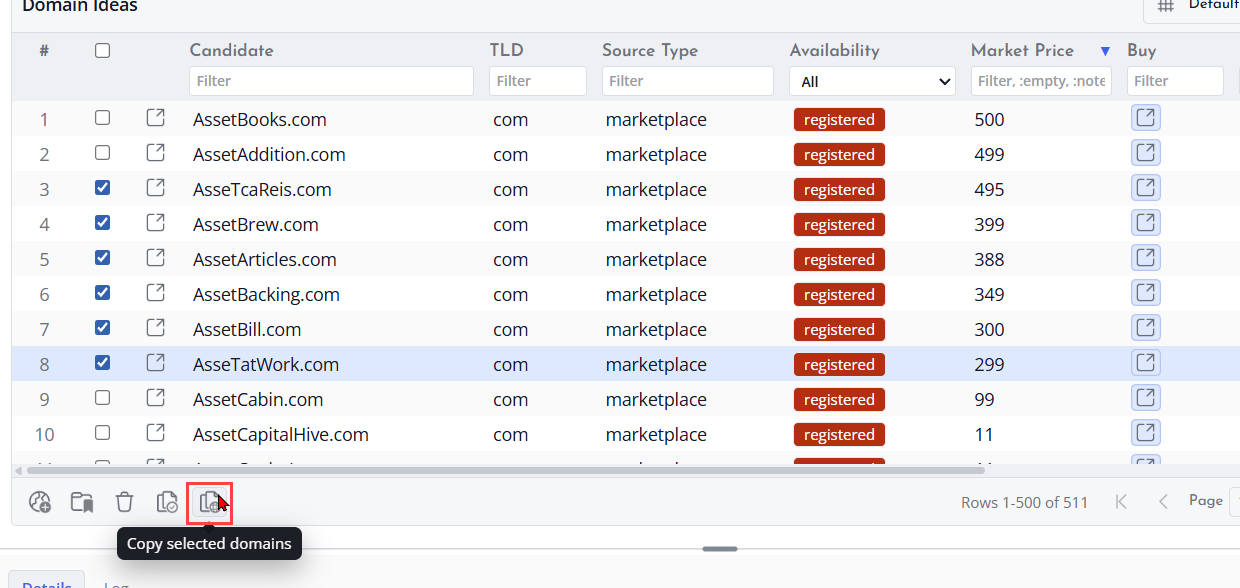
Some workflows only need the domain names, not every visible column. When available, use the domain-list copy option to copy just the domain values from the current table or selection.
Export Results
Use export options when you need a file copy of table data. Exported data can be opened in spreadsheet applications or saved as a record of the current review.
In general table views, export works with the current visible table data. If you have filtered or sorted the table, review the visible rows and columns before exporting so the saved file contains the data you expect.
Review Before Sharing
Before sending copied or exported data to someone else, review the visible columns, selected rows, and table filters. Make sure the data includes the fields you intend to share and excludes fields that are only useful for your own work.
Copying Rows and Domain Lists
Copying Table Data
Copy table rows when you want to quickly move domain data into an email, document, spreadsheet, or another application without creating an export file.
Copying Domain Names Only
When you only need the domain names, use the copy option that focuses on the domain column. This is useful for registrar searches, external checks, marketplace research, or sharing a clean list.
Using Copied Data
Paste the copied data into the destination application and check the formatting. For larger or structured data transfers, exporting the current table view to a file may be easier than copying to the clipboard.
Saving Selected Rows Manually
Select the Rows First
Use selected-row copy when you only need part of a table. Select the rows you want to include before starting the copy action.
Copy and Save the Selection
Choose the option that copies selected rows. Then paste the copied rows into a text editor or spreadsheet application and save the file in the format you need, such as CSV, spreadsheet, or plain text. This keeps the saved data focused and avoids including unrelated domains or candidate names.
Check the Saved File
After saving, review the file to make sure it contains only the rows you selected. If you need a different set of rows, return to the table, change the selection, copy the rows again, and save a new file.
