
Domain Name Analyzer Desktop User Guide
Creating, Opening, Saving, and Handling Projects
Creating a New Project
A project is the working file that stores your Domain Workspace data, Domain Ideas, lookup results, and related project information. Use a new project when you want to start a separate domain research or management file.
Start a Project
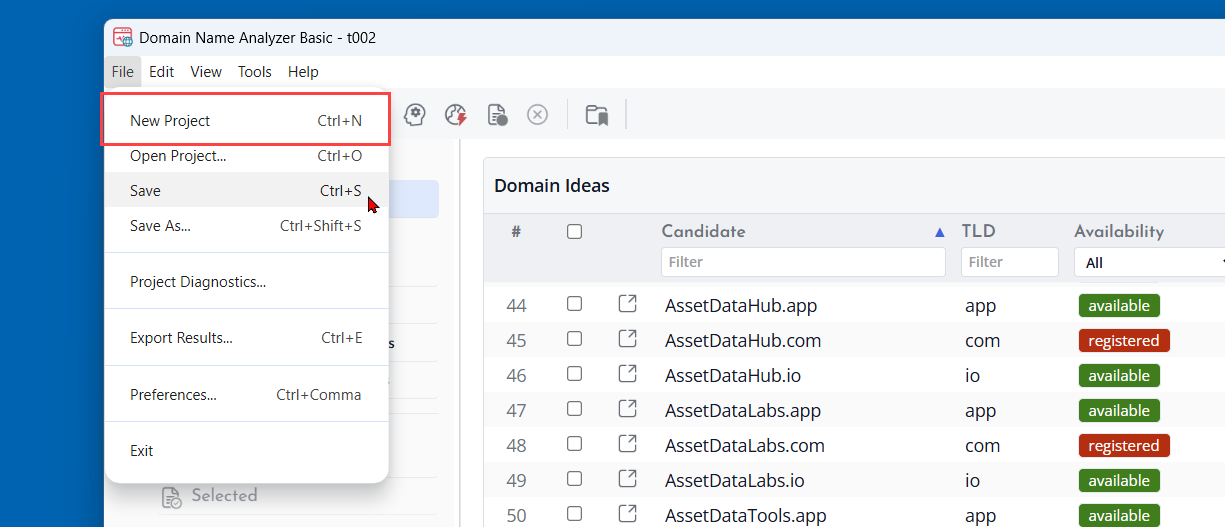
Choose File > New Project, or use the New Project toolbar button. Domain Name Analyzer Desktop opens a fresh project workspace so you can begin adding domains or generating ideas.
Before Replacing the Current Project
If another project is already open and has unsaved changes, the application may ask what you want to do before continuing. Save the current project first if you want to keep the latest changes.
What to Do Next
After creating a project, you can add tracked domains in Domain Workspace, create candidate domains in Domain Ideas, or add domains to the Global Watch List. Saving the project creates or updates a .dna project file.
Basic Edition Note
The Basic edition is free. It is suitable for getting started and currently limits each project Domain Workspace to 10 tracked domains.
Opening an Existing Project
Open an existing project when you want to continue working with a saved .dna file. A project file can contain tracked domains, candidate domains, lookup history, notes, and related project data.
Open a Project File
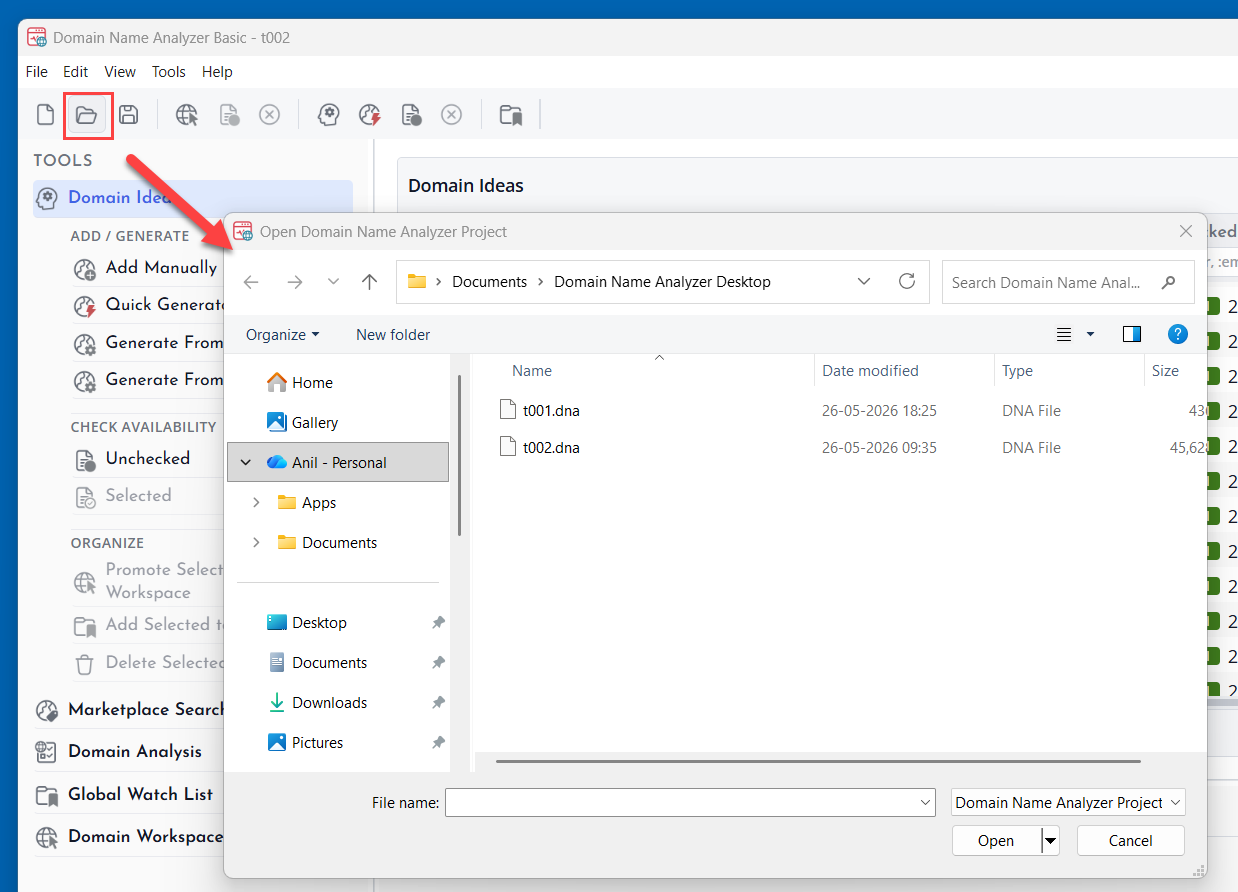
Choose File > Open Project, or use the Open Project toolbar button. Select the .dna project file you want to open.
When Another Project Is Open
If the current project has unsaved changes, save it before opening another project. This helps prevent losing recent edits, imported domains, or lookup results.
After Opening
After the project opens, review the Domain Workspace, Domain Ideas, and Global Watch List areas as needed. Use Project Diagnostics if you need to confirm project file details or check the project state.
If a Project Does Not Open
If a file cannot be opened, confirm that it is a valid Domain Name Analyzer Desktop project file. If the project was created by a newer version of the application, update Domain Name Analyzer Desktop before trying again.
Saving and Using Save As
Saving keeps your project changes in a .dna project file. Use Save for the current project file and Save As when you want to create a separate copy or choose a new file name.
Save the Current Project
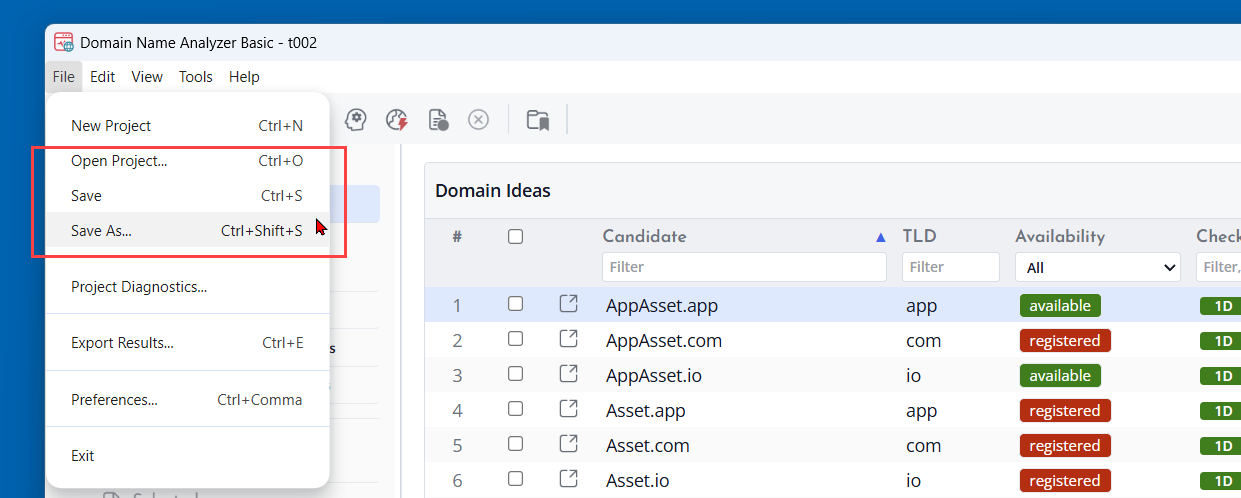
Choose File > Save, or use the Save Project toolbar button. Save updates the current project file with the latest project data.
Use Save As
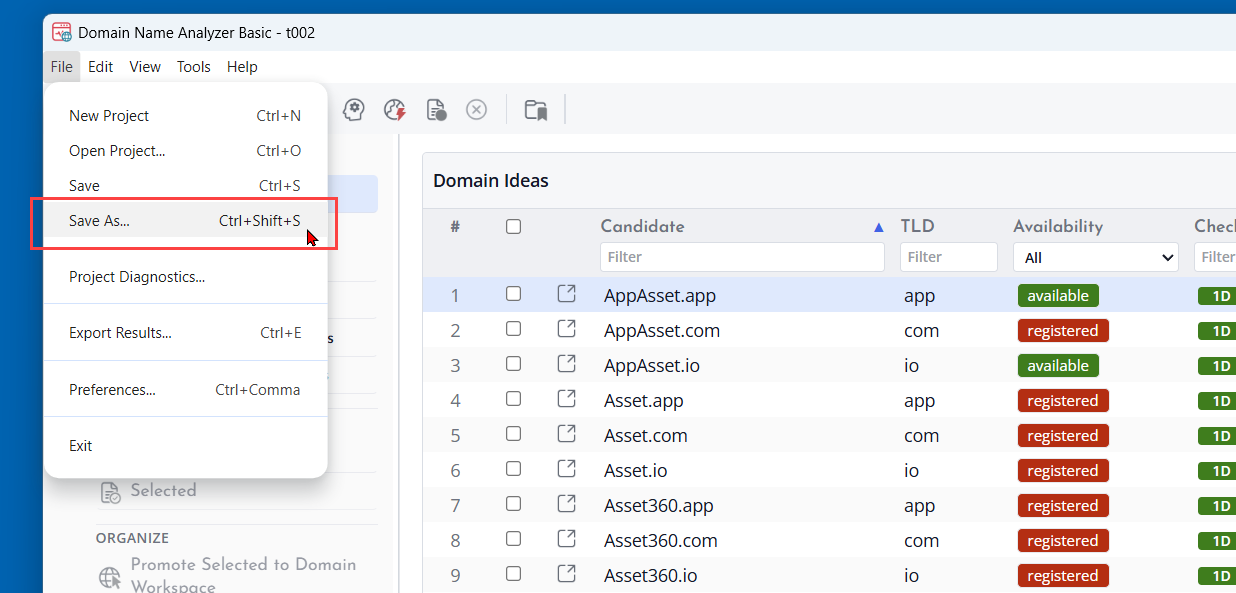
Choose File > Save As when you want to save the project under a new name or in a different folder. This is useful before making major changes, creating a copy for a client, or keeping separate versions of a research project.
Unsaved Changes
If you have changed the project since the last save, the application may warn you before you create a new project, open another project, or exit. Save before switching files if you want to preserve recent changes.
Project File Safety
Store .dna project files in a folder that is included in your normal backup process. A project file is the main container for your project-specific domain work.
Handling Unsaved Changes
Domain Name Analyzer Desktop tracks whether the current project has changes that have not yet been saved. This helps protect your work when you close a window, open another project, or exit the application.
What Counts as an Unsaved Change
Unsaved changes can include added domains, edited notes, imported data, generated candidate domains, lookup results, deleted rows, or changes made to project data since the last save.
Saving Before You Close
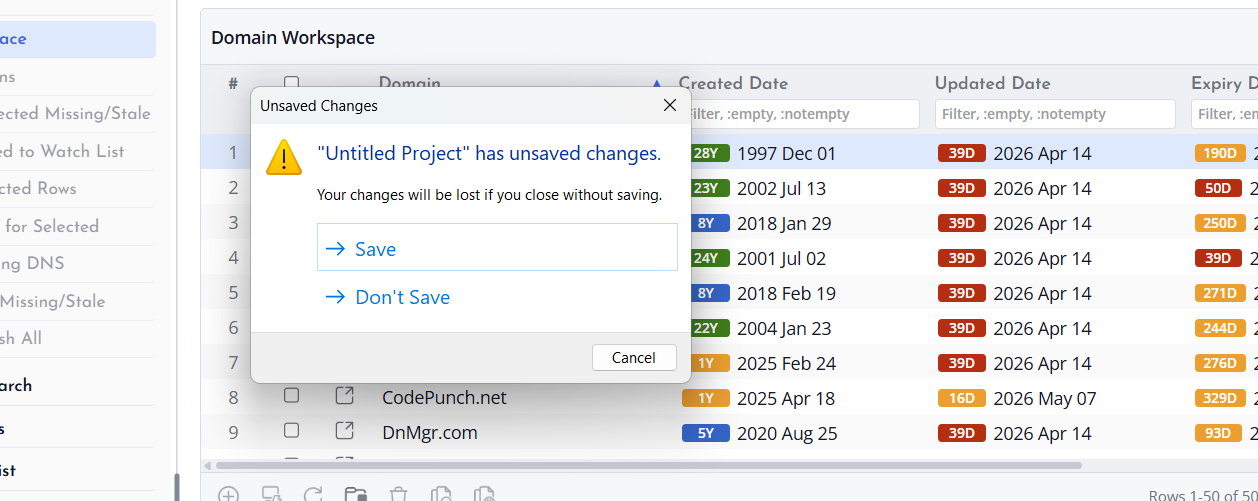
If you close a project with unsaved changes, Domain Name Analyzer Desktop asks whether you want to save, close without saving, or cancel. Choose Save to keep your changes. Choose Cancel to return to the project without closing it.
Using Save and Save As
Use Save when you want to update the current project file. Use Save As when you want to create a separate copy of the project under a new name or in a different folder.
Good Saving Habits
Save before starting large imports, long lookup sessions, or major cleanup work. Saving at important points gives you a clear project version to return to if you later decide to change direction.
