
Domain Name Analyzer Desktop User Guide
Running and Canceling Domain Record Lookups
Check Selected Missing or Stale Domain Records
Use This for Focused Updates
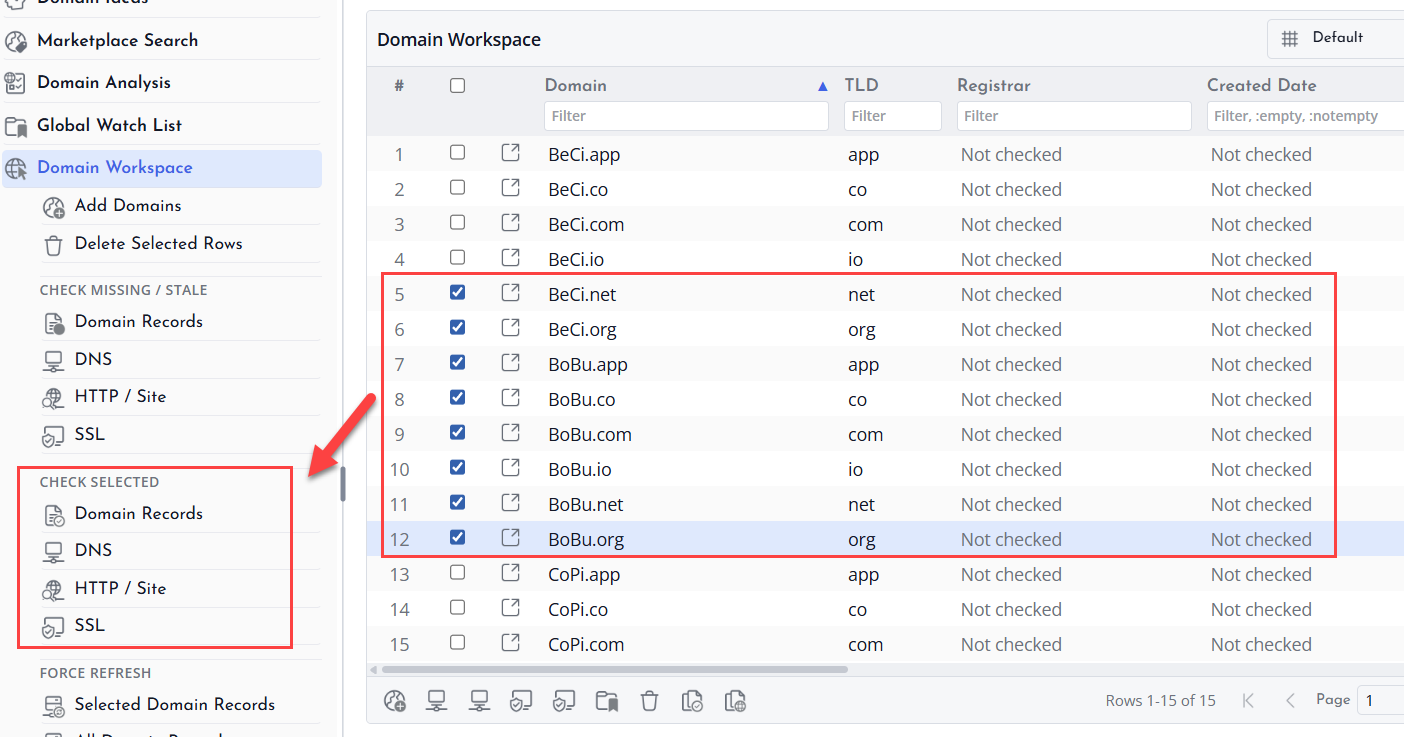
Use Check Selected Missing or Stale Domain Records when you want to update only specific rows. This is useful when you have selected a small group of domains and want to avoid checking the entire table.
Select the Rows First
In the Domain Workspace, select the domains you want to check. The action looks for selected rows where lookup data is missing or older than your freshness settings.
Review Results After the Lookup
After the lookup finishes, review the updated columns and any messages in the details or status area. Rows that could not be updated may show a lookup-related status instead of fresh data.
Check All Missing or Stale Domain Records
Use This for Project-Wide Updates
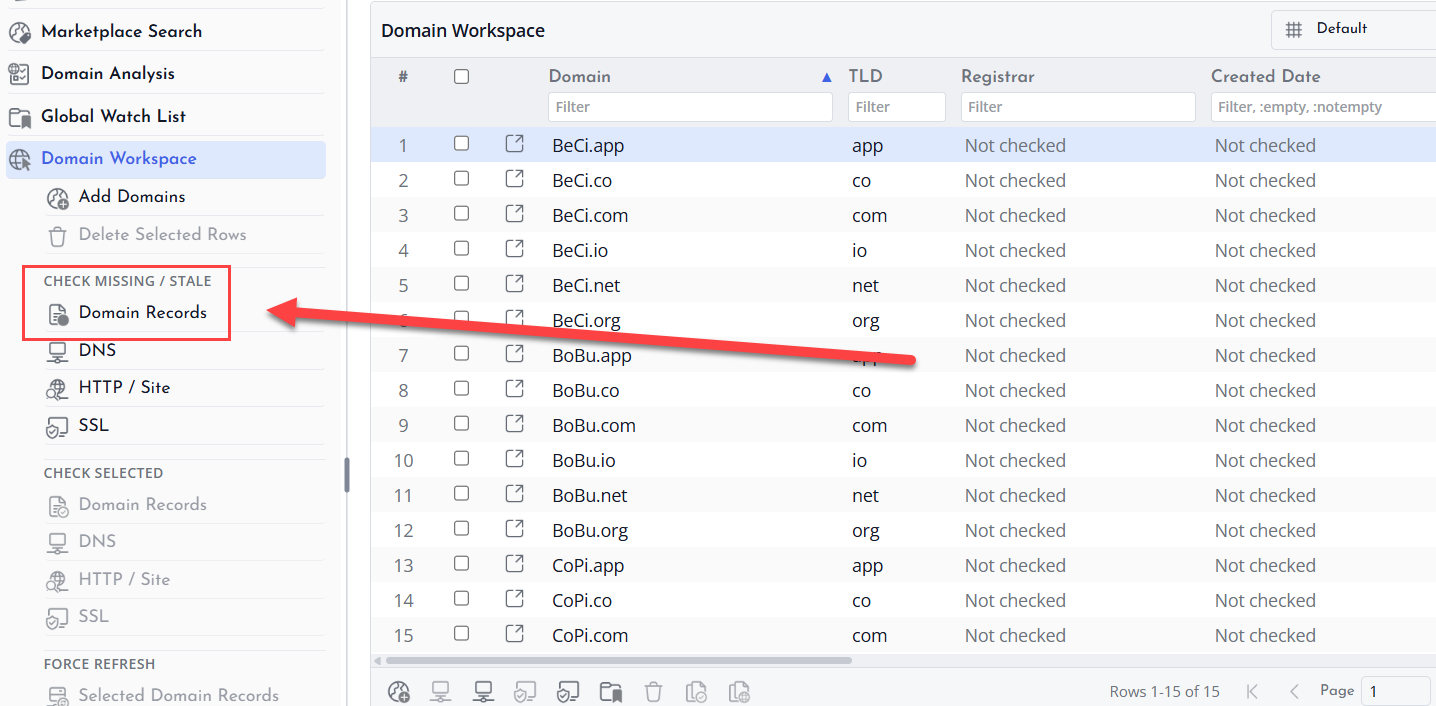
Use Check All Missing or Stale Domain Records when you want the application to check the whole Domain Workspace for rows that need lookup data. This is helpful after importing a list or reopening an older project.
Only Needed Rows Are Checked
This action is intended for rows with missing or stale lookup data. It helps avoid unnecessary repeated lookups while still bringing the project up to date.
Let the Lookup Finish
Large projects may take time because lookups depend on registry responses, network conditions, and rate limits. You can continue reviewing rows while watching for completion status.
Force Refresh Selected Domains
When to Force a Refresh
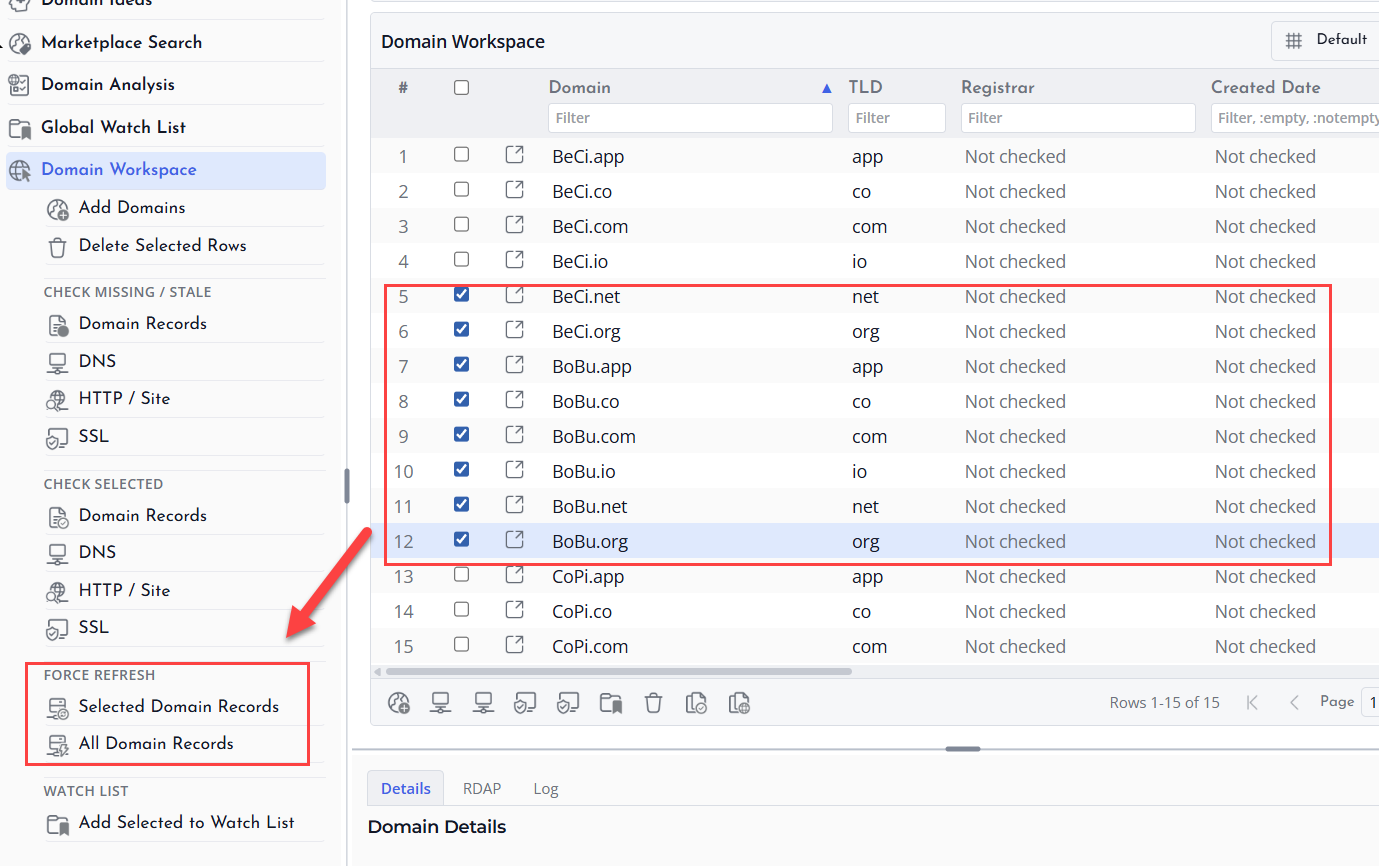
Use Force Refresh Selected Domains when you want fresh lookup data for selected rows even if the existing data is recent. This is useful after a known registration change, transfer, renewal, or correction.
Select Domains Carefully
Select only the domains that truly need a forced refresh. Forced lookups bypass normal freshness checks and may repeat network requests that would otherwise be skipped.
Review Updated Values
After the refresh, compare the updated fields with the previous values if needed. Some registries may still return limited data or temporary errors.
Force Refresh All Domains
Use With Care
Force Refresh All Domains requests fresh lookup data for every domain in the current Domain Workspace. Use this only when you have a clear reason to refresh the entire project.
Why It May Take Longer
This action can require many lookup requests. Completion time depends on the number of domains, registry responses, network conditions, and your lookup preference settings.
Review Lookup Status
When the refresh completes, review status columns and details for rows that returned errors, limited data, or no registration data.
Canceling Domain Record Lookups
When to Cancel
You may want to cancel domain-record lookups if you started the wrong action, selected too many rows, need to change lookup preferences, or want to stop a long-running batch.
Use the Cancel Action
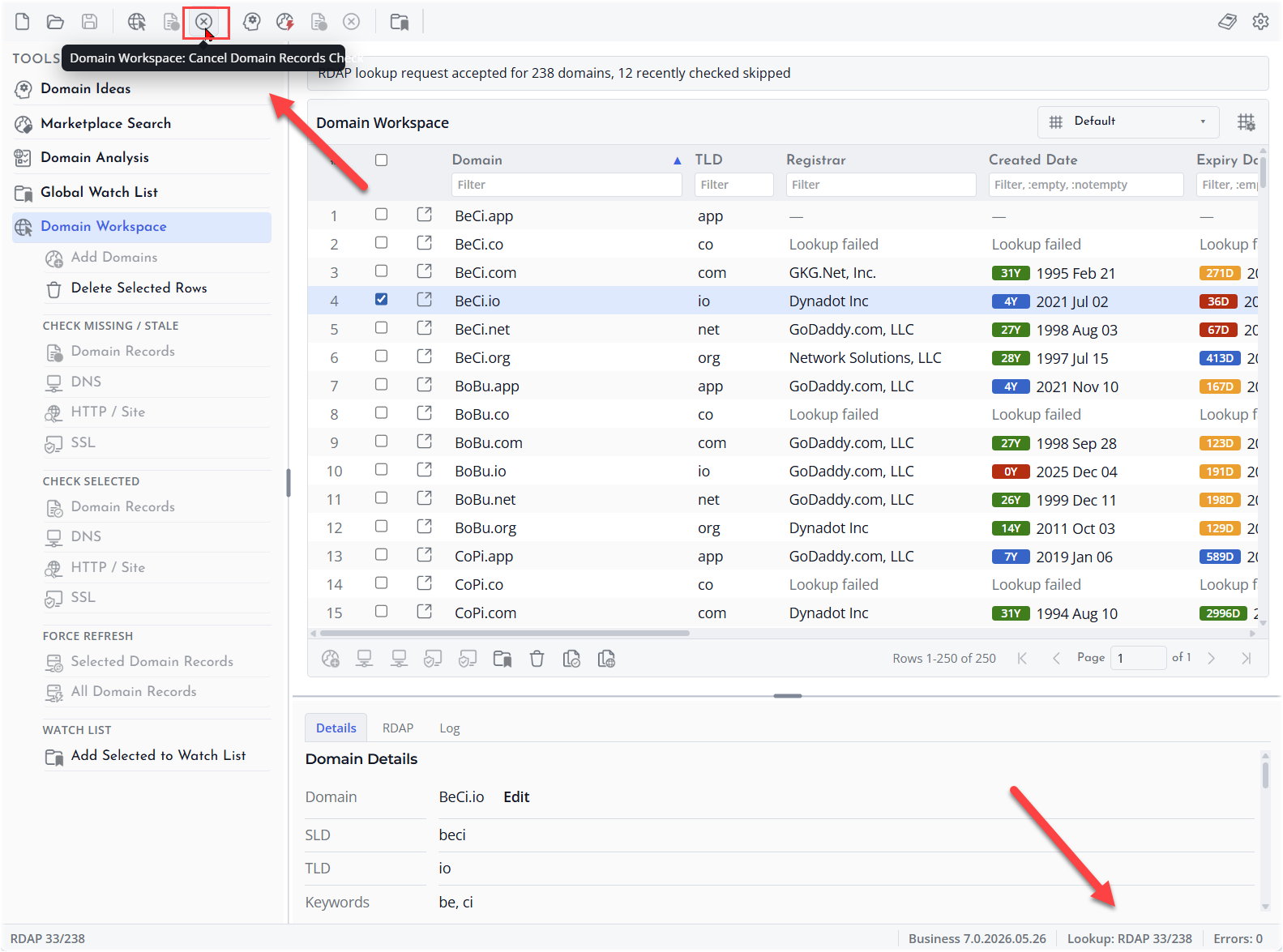
Use the cancel lookup action while a lookup batch is running. The application stops the current operation as safely as possible and keeps any results that were already completed.
Check Partial Results
After canceling, some rows may have fresh data while others remain unchanged. You can run a smaller lookup later for rows that still need data.
