
Domain Portfolio

 This is a custom tool available in addition to the standard Watch My Domains SED interface.
To access custom tools, look for the custom tools icon in the main toolbar.
These custom tools will be available in versions released after March/April 2026.
This is a custom tool available in addition to the standard Watch My Domains SED interface.
To access custom tools, look for the custom tools icon in the main toolbar.
These custom tools will be available in versions released after March/April 2026.
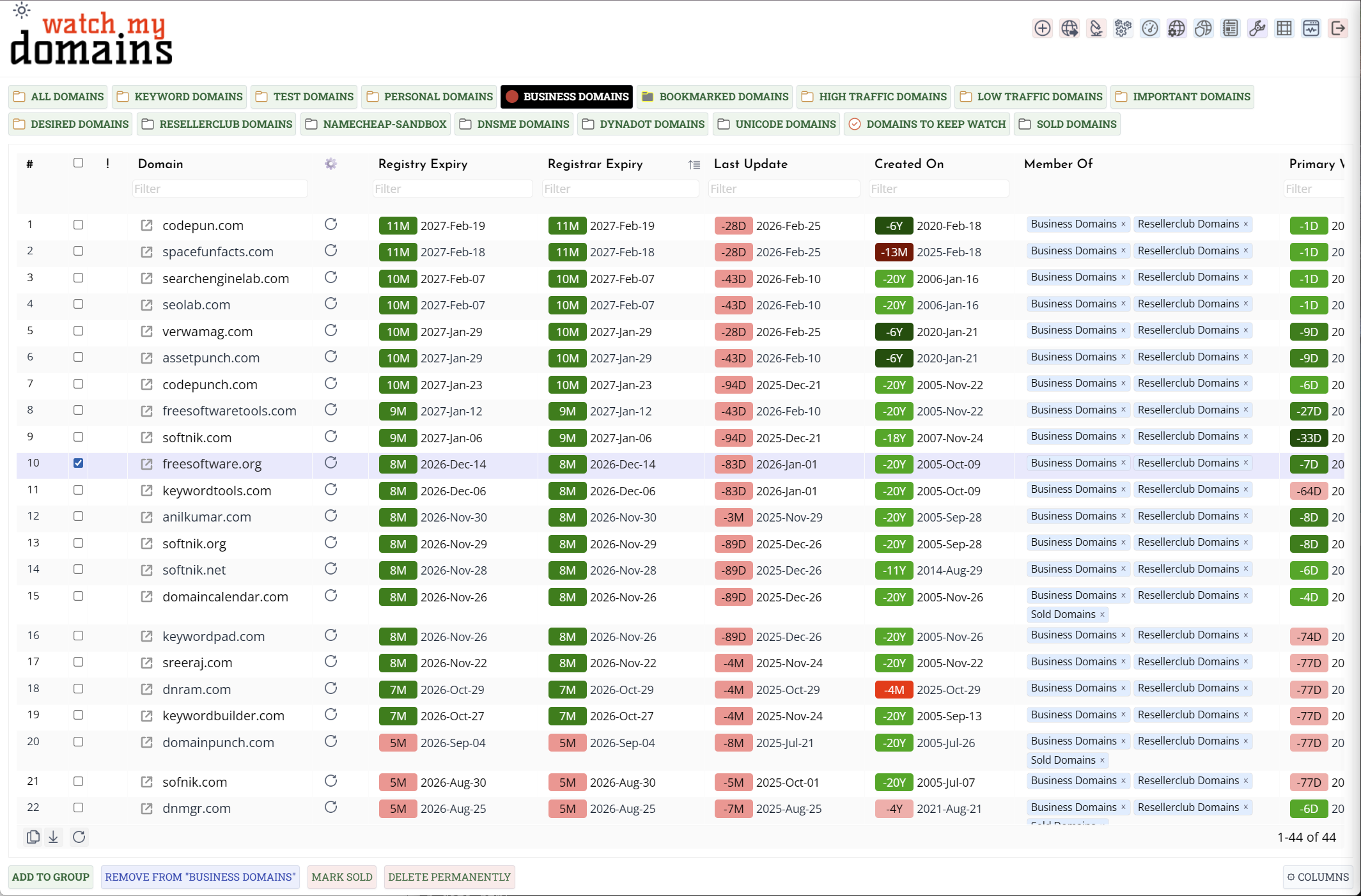
The Domain Portfolio tool provides a fully customizable view of your domain data. You can choose which columns to display, reorder them, filter by category, trigger whois and DNS lookups, and manage category assignments for selected domains - all from a single interface.
For Users
Browsing the Portfolio
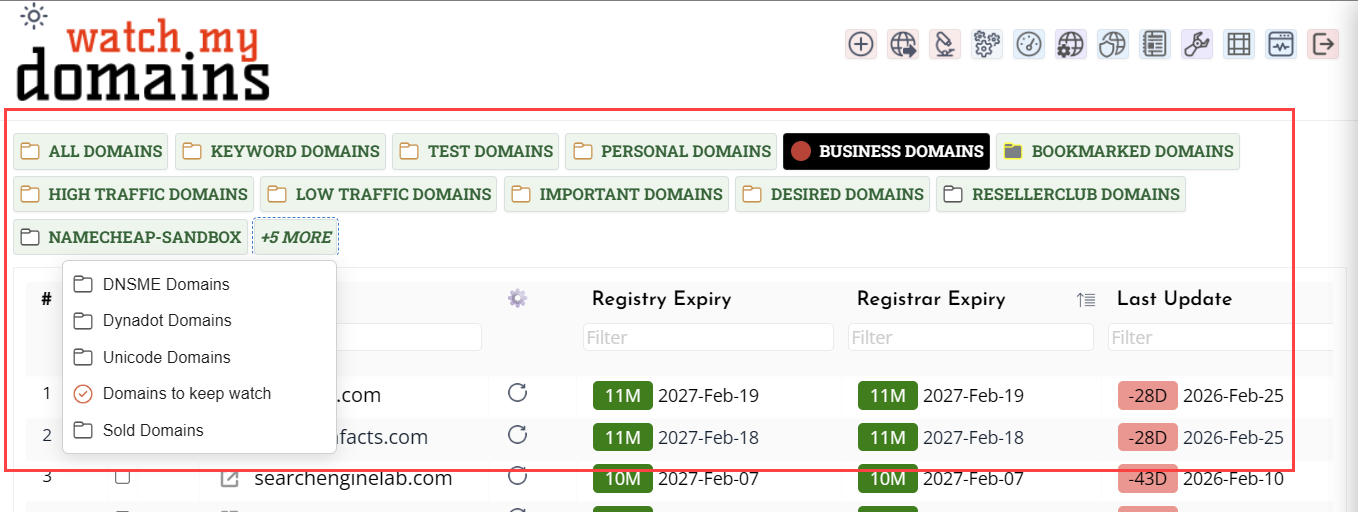
Domains are displayed in a paginated table. Use the category buttons along the top to filter by category. If there are more categories than fit in two rows, the overflow categories are accessible via the +N more button which opens a dropdown list.
Click any column header to sort by that column. Click again to reverse the sort order. Use the filter input below each column header to filter rows by that column's value. Prefix a filter value with = for an exact match or ! to exclude that value.
Rows can be selected using the checkboxes on the left. Hold Shift to select a range. Hold Ctrl to toggle individual rows without clearing the existing selection.
Choosing and Reordering Columns
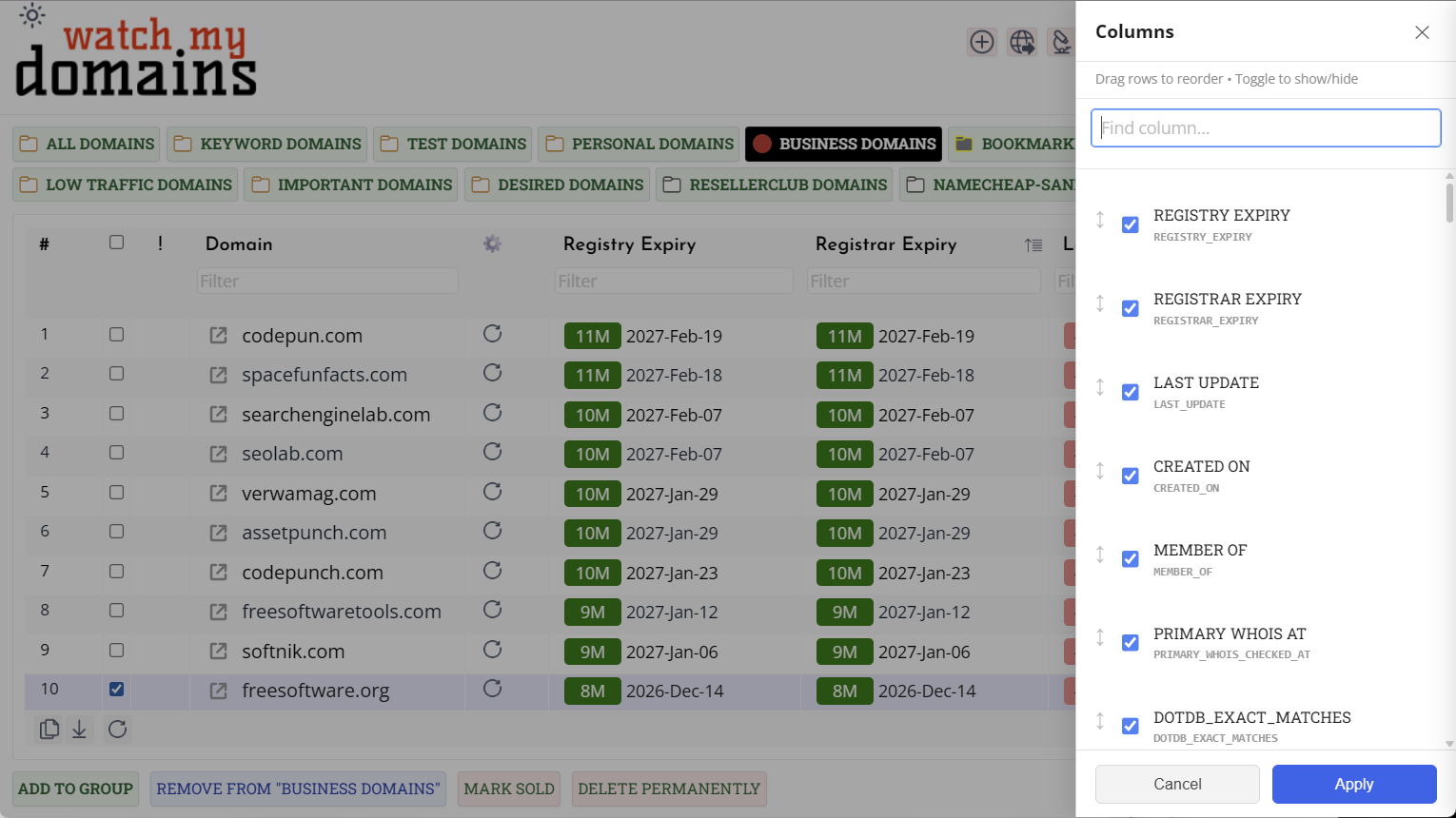
Click the Columns button in the footer to open the column picker panel. The panel shows all available columns. Use the checkboxes to show or hide individual columns. Drag any row to reorder columns. Use the search box at the top of the panel to find a column by name.
Drag-and-drop reordering is disabled while a search filter is active. Clear the search first to reorder. Click Apply to update the table. Your column selection and order are saved automatically and restored on the next visit. Click Cancel to discard changes.
The Member Of Column
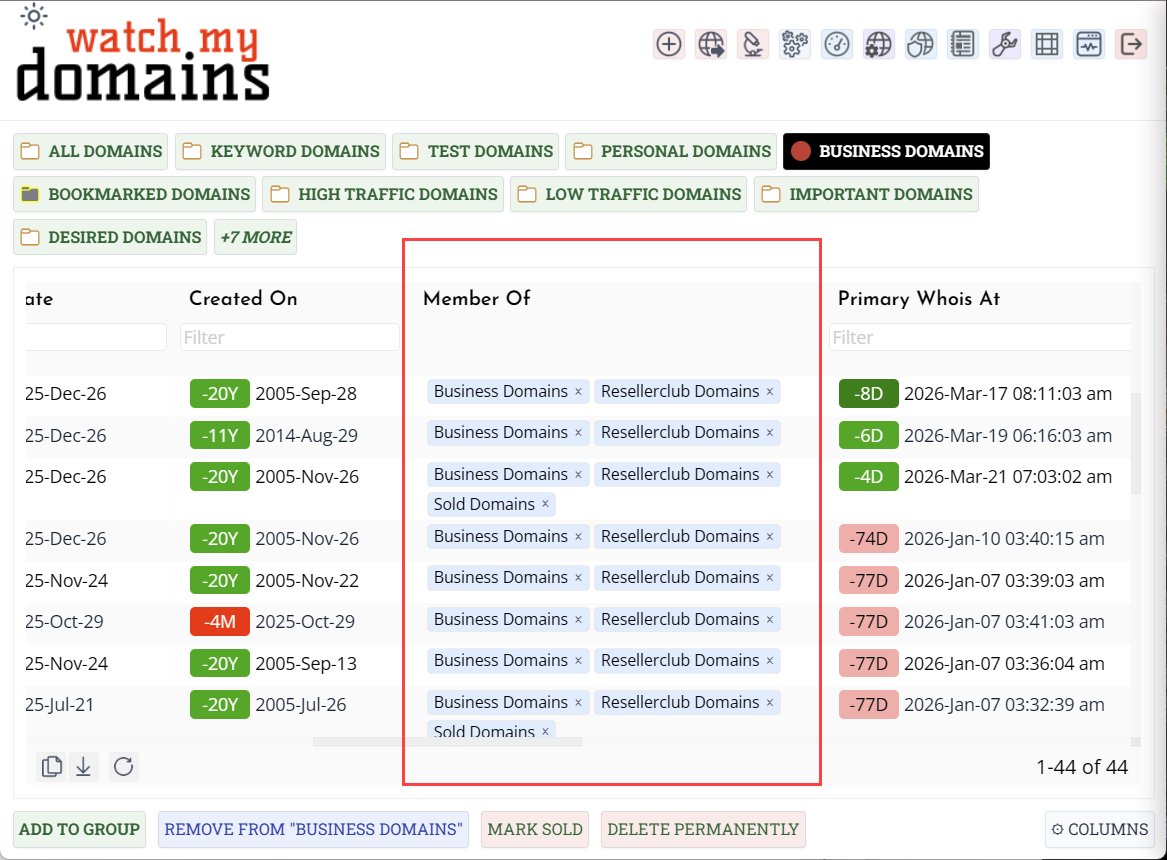
The Member Of column shows which categories each domain belongs to as coloured pills. Click the × on any pill to remove that domain from that category. A confirmation is shown before the change is applied. The row updates immediately without reloading the full table.
Triggering a Lookup
Each row has a refresh button in the first column. Click it to queue a whois and DNS lookup for that domain. The button animates while the lookup is in progress. When the lookup completes the row data updates automatically. If the lookup queue is very large the tool backs off its polling interval and will retry.
Selecting Domains for Bulk Actions
Select one or more domains using the checkboxes, then use the action buttons in the footer. The buttons are disabled when nothing is selected. Hovering a disabled button shows why it is unavailable.
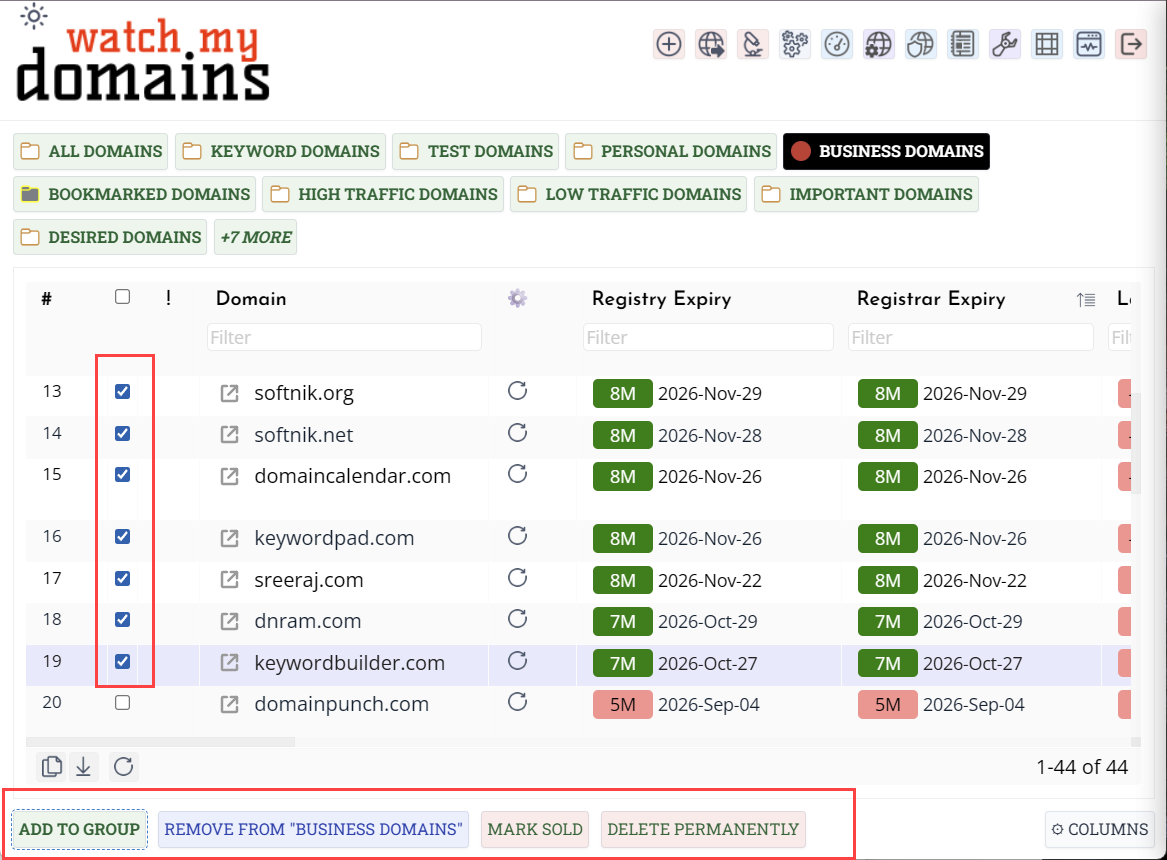
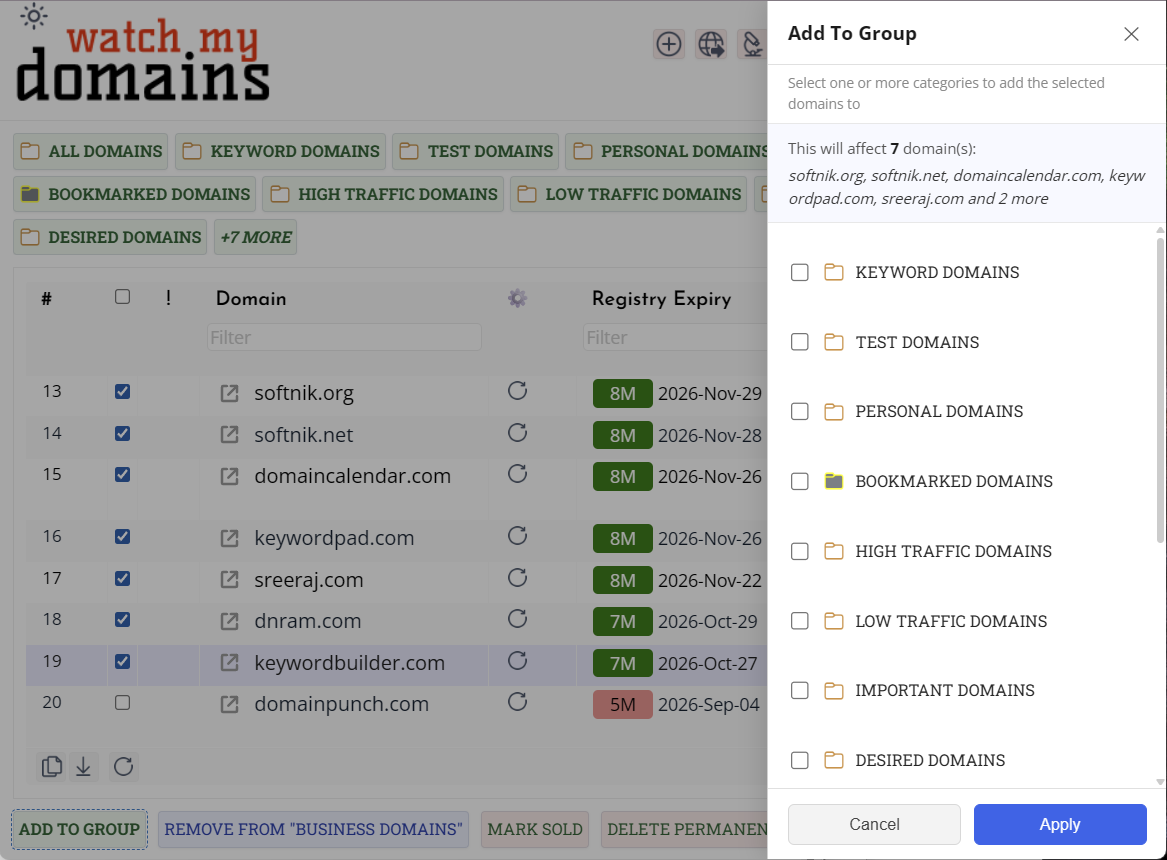
Add To Group
Opens a side panel listing available categories. The panel shows the number of domains selected and their names at the top (up to 5 names, then a count of the remainder). Categories that all selected domains already belong to are excluded from the list. Check one or more categories and click Apply. A confirmation dialog shows the affected domains and categories before the change is made.
Remove From Group
Removes the selected domains from the currently active category (the highlighted button in the category bar). The button label updates to show which category will be affected, for example Remove From "Business Domains". This button is disabled when All Domains is the active category. A confirmation dialog is shown before the change is applied.
Mark Sold
Adds the selected domains to the Sold Domains category. This button is only visible if a category with that name exists in the system. A confirmation dialog shows the affected domains before the change is applied.
Add To Ignore List
Adds the selected domains to the Ignored Domains category. This button is only visible if a category with that name exists in the system. A confirmation dialog shows the affected domains before the change is applied.
Delete Permanently
Permanently deletes the selected domains from the portfolio. This action cannot be undone. A confirmation dialog with a clear warning and the names of the affected domains is shown before deletion.
Dark Mode
The portfolio respects the application-wide dark mode setting. All panels, dropdowns, and pill colours adapt automatically.
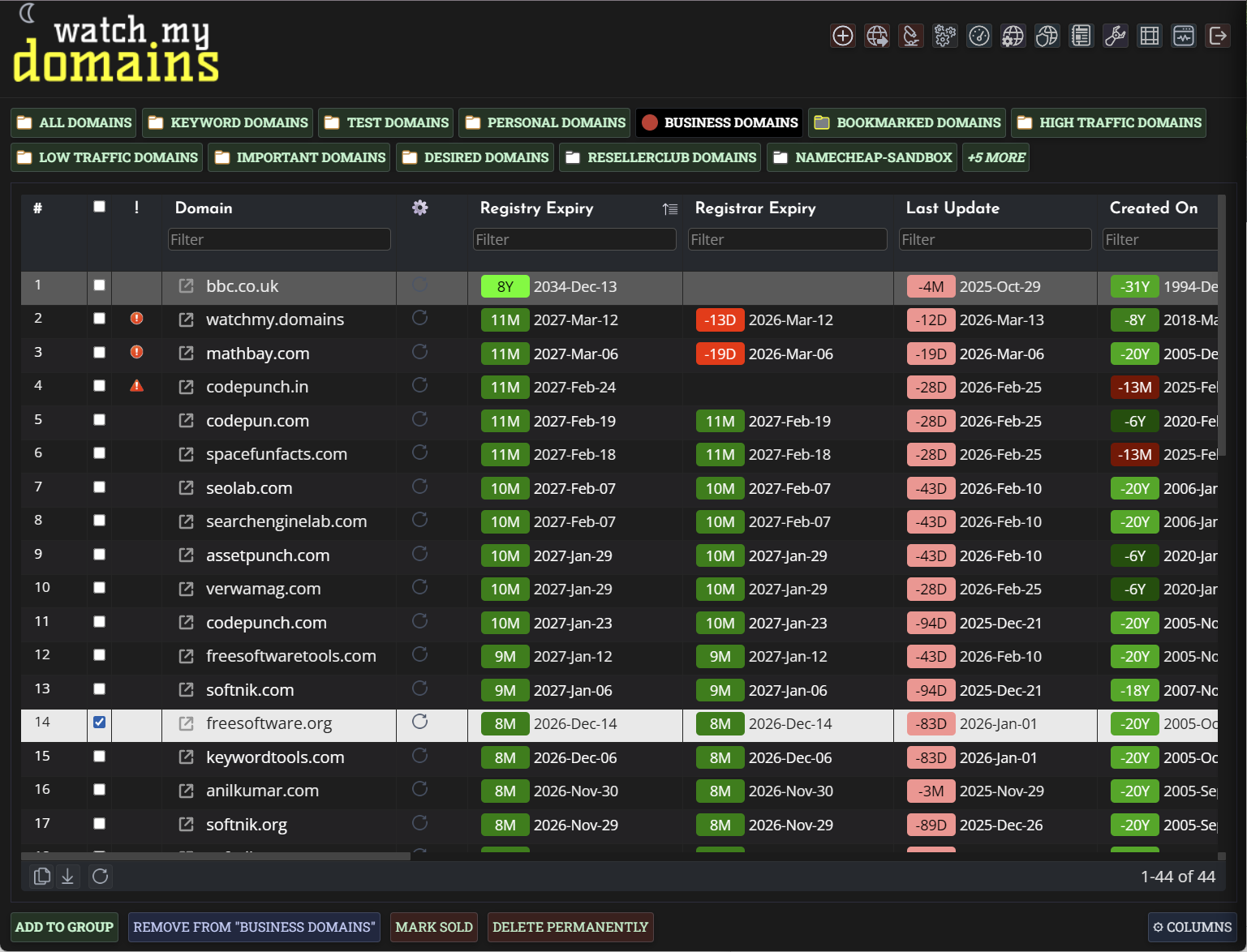
For Administrators
Column Configuration and Persistence
Column visibility, order, and width are saved per installation and shared across all users. Column widths are saved automatically when a user resizes a column by dragging the column divider.
Available Columns
The column picker shows all domain data columns that are suitable for grid display. Custom columns you have defined in WMD settings are also available. Some system-internal columns are excluded automatically.
Category Setup for Special Buttons
The Mark Sold and Add To Ignore List buttons appear only if categories named exactly Sold Domains and Ignored Domains exist in the system. If these categories do not exist, the buttons are hidden for all users. Create the categories in WMD settings to enable these buttons.
Category Access Control
The category bar shows only categories the current user has access to. The Add To Group panel similarly shows only accessible categories. Category membership changes made via the portfolio respect the same access controls - users cannot add domains to categories they do not have access to.
