
Domain Portfolio: Custom Tool

 This is a custom tool available in addition to the standard Watch My Domains SED interface.
To access custom tools, look for the custom tools icon in the main toolbar.
These custom tools will be available in versions released after March/April 2026.
This is a custom tool available in addition to the standard Watch My Domains SED interface.
To access custom tools, look for the custom tools icon in the main toolbar.
These custom tools will be available in versions released after March/April 2026.
The Domain Portfolio tool provides a fully customizable view of your domain data. You can choose which columns to display, reorder them, filter by category, trigger whois and DNS lookups, and manage category assignments for selected domains - all from a single interface.
For Users
Browsing the Portfolio
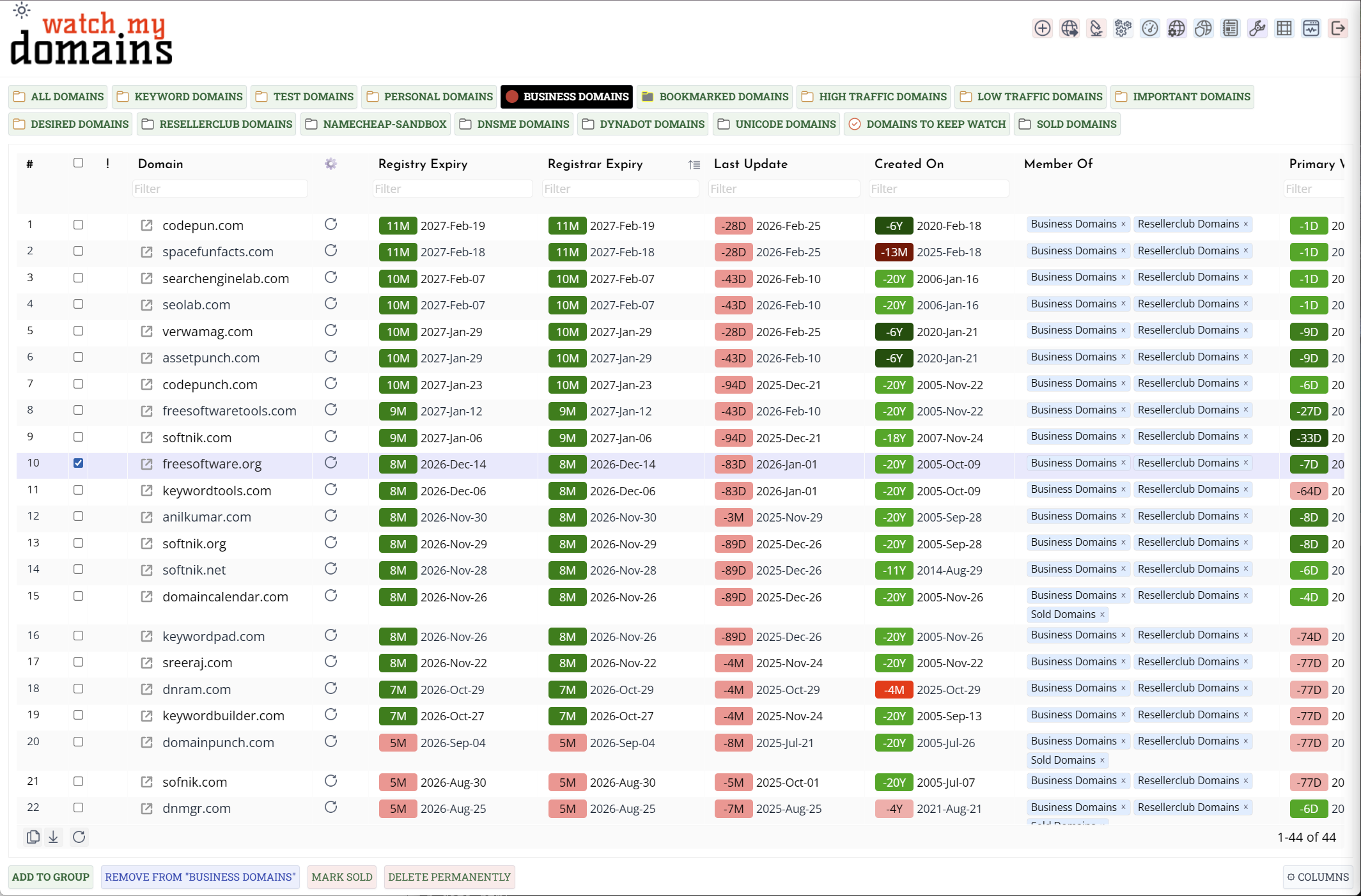
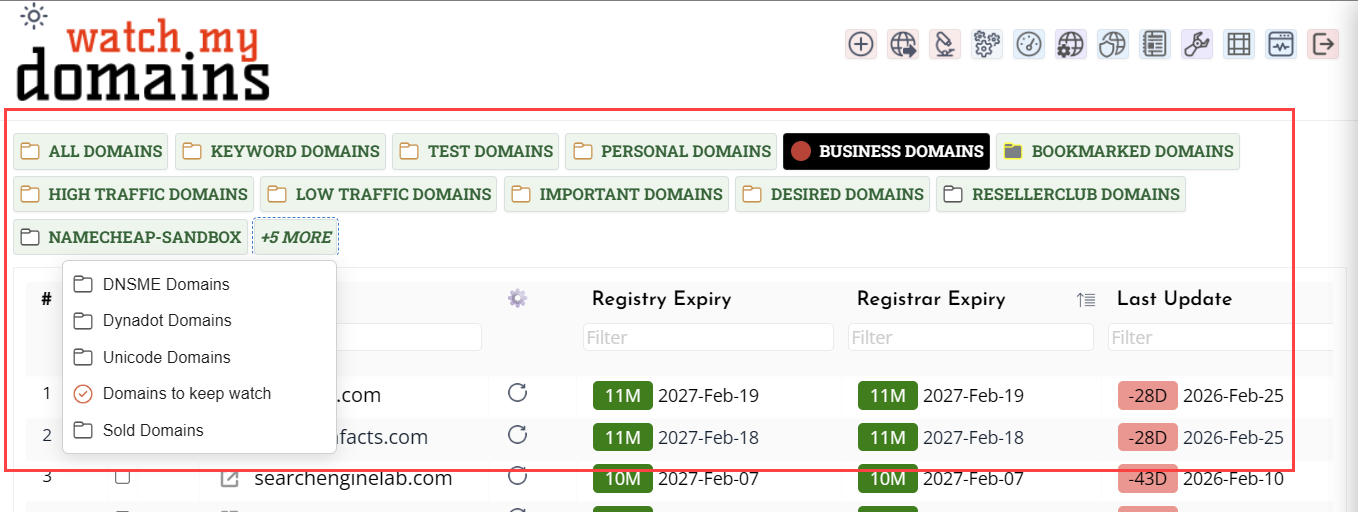
Domains are displayed in a paginated table. Use the category buttons along the top to filter by category. If there are more categories than fit in two rows, the overflow categories are accessible via the +N more button which opens a dropdown list.
Depending on how the installation is configured, the category buttons may appear in a collapsible panel on the left side of the screen instead of along the top. Click the ‹ button at the top of the panel to collapse it and give the table more horizontal space. Click › to expand it again. The panel remembers its collapsed or expanded state between visits.
Click any column header to sort by that column. Click again to reverse the sort order. Use the filter input below each column header to filter rows by that column's value. Prefix a filter value with = for an exact match or ! to exclude that value.
Rows can be selected using the checkboxes on the left. Hold Shift to select a range. Hold Ctrl to toggle individual rows without clearing the existing selection.
Filter Bar
The filter bar sits between the category buttons and the domain table. It provides additional filtering options beyond the column-level search inputs. The Expiration group is always present and offers separate dropdowns for Registry and Registrar expiry — choose a range such as Expires within 30 days, or use Expired, Expired or Unknown, or Unknown to focus on domains that need attention.
Additional filter groups such as Registrar and Nameserver may appear depending on how the installation is configured. All active filters combine — selecting an expiry range and typing a registrar name will show only domains matching both conditions simultaneously.
If the filter bar is not visible, it has been disabled by the administrator in the portfolio configuration file.
Choosing and Reordering Columns
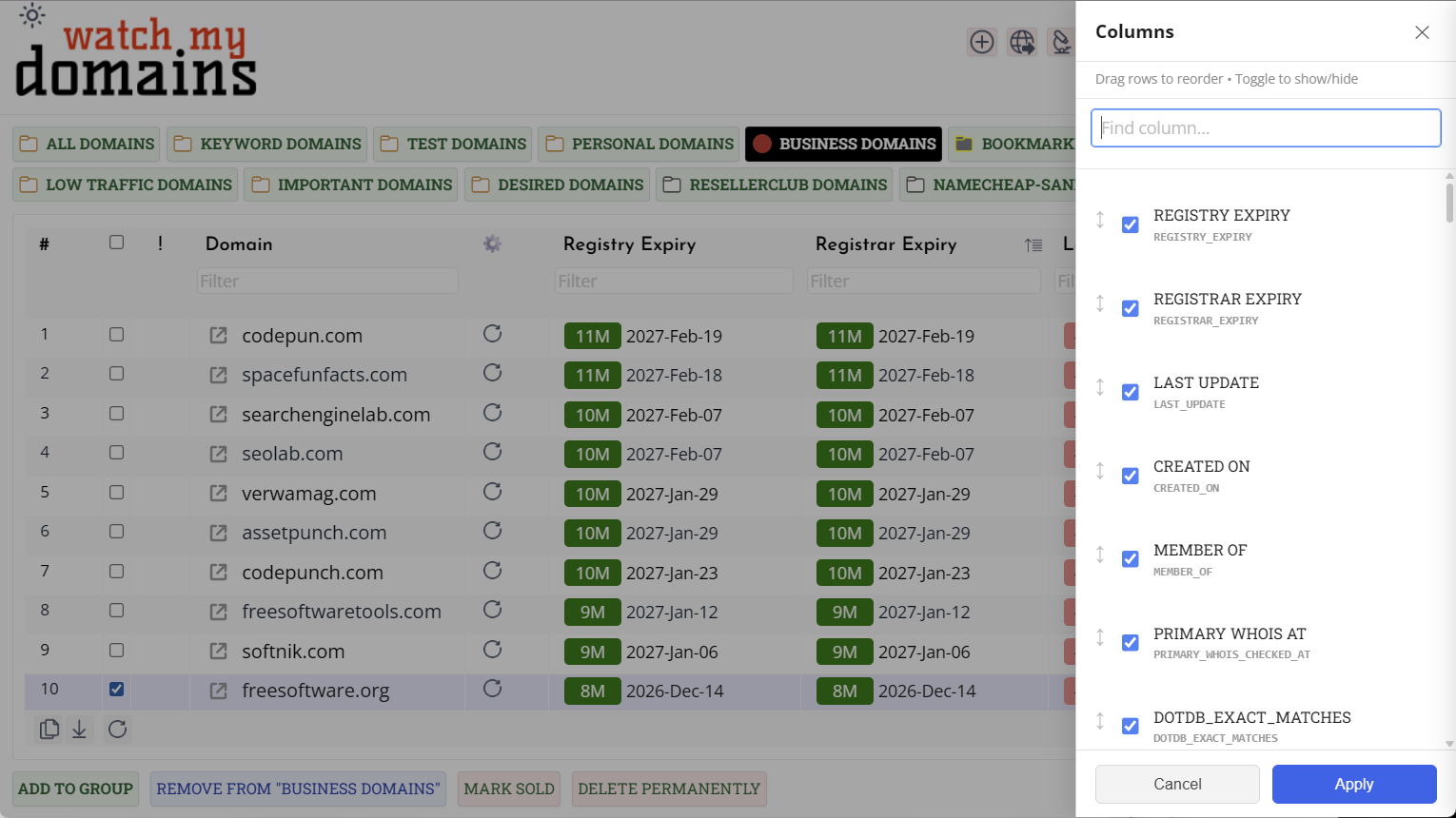
Click the Columns button in the footer to open the column picker panel. The panel shows all available columns. Use the checkboxes to show or hide individual columns. Drag any row to reorder columns. Use the search box at the top of the panel to find a column by name.
Drag-and-drop reordering is disabled while a search filter is active. Clear the search first to reorder. Click Apply to update the table. Your column selection and order are saved automatically and restored on the next visit. Click Cancel to discard changes.
The Member Of Column
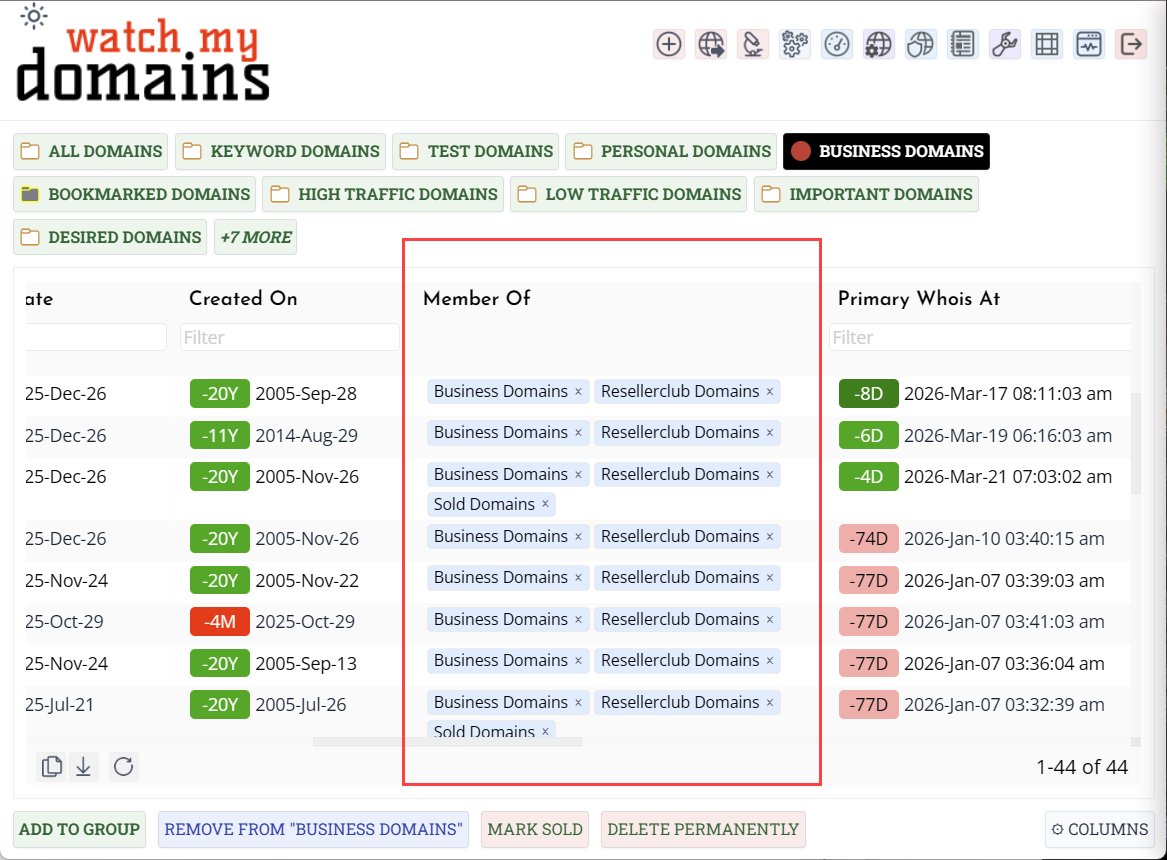
The Member Of column shows which categories each domain belongs to as coloured pills. Click the × on any pill to remove that domain from that category. A confirmation is shown before the change is applied. The row updates immediately without reloading the full table.
The Nameservers Column
The Nameservers column shows all nameservers for a domain as compact pills in a single cell, combining all eight nameserver fields into one readable view. This column is available in the column picker and can be shown or hidden like any other column. When the Nameservers column is active, individual NS1–NS8 columns are automatically hidden from the picker to avoid duplication — they reappear if the Nameservers column is removed.
Inline Editing
If inline editing has been enabled by the administrator, certain columns can be edited directly in the table. Editable cells show a text cursor on hover. Double-click any editable cell to open an input field. Press Enter to save the change. Press Escape, click away, or press Tab to cancel without saving. The change is saved immediately to the server and the row updates without a full table reload. If the save fails an error message appears briefly below the cell.
Inline editing only affects the specific cell that was edited, even if multiple rows are selected.
Triggering a Lookup
Each row has a refresh button in the first column. Click it to queue a whois and DNS lookup for that domain. The button animates while the lookup is in progress. When the lookup completes the row data updates automatically. If the lookup queue is very large the tool backs off its polling interval and will retry.
Selecting Domains for Bulk Actions
Select one or more domains using the checkboxes, then use the action buttons in the footer. The buttons are disabled when nothing is selected. Hovering a disabled button shows why it is unavailable.
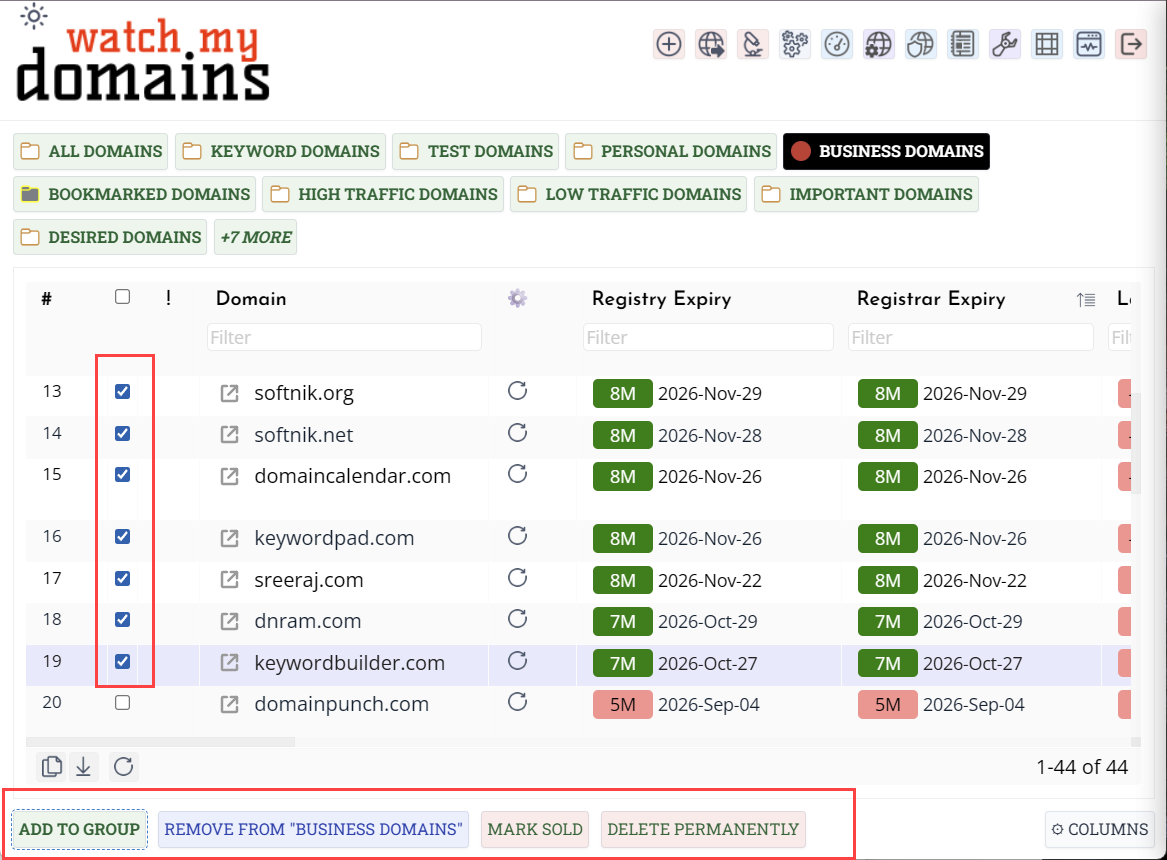
Add To Group
Opens a side panel listing available categories. The panel shows the number of domains selected and their names at the top (up to 5 names, then a count of the remainder). Categories that all selected domains already belong to are excluded from the list. Check one or more categories and click Apply. A confirmation dialog shows the affected domains and categories before the change is made.
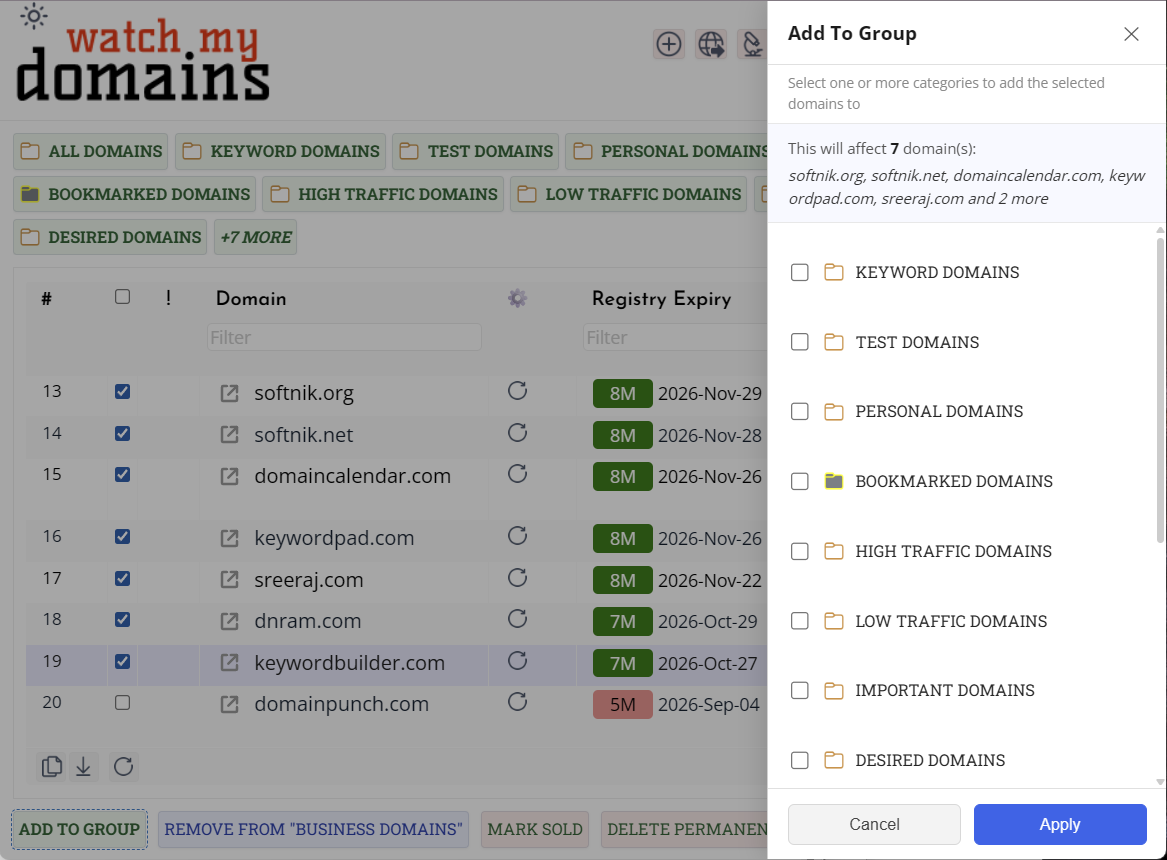
Remove From Group
Removes the selected domains from the currently active category (the highlighted button in the category bar). The button label updates to show which category will be affected, for example Remove From "Business Domains". This button is disabled when All Domains is the active category. A confirmation dialog is shown before the change is applied.
Mark Sold
Adds the selected domains to the Sold Domains category. This button is only visible if a category with that name exists in the system. A confirmation dialog shows the affected domains before the change is applied.
Add To Ignore List
Adds the selected domains to the Ignored Domains category. This button is only visible if a category with that name exists in the system. A confirmation dialog shows the affected domains before the change is applied.
Mark Deleted
Adds the selected domains to the Deleted Domains category. This button is only visible if a category with that name exists in the system. A confirmation dialog shows the affected domains before the change is applied.
Delete Permanently
Permanently deletes the selected domains from the portfolio. This action cannot be undone. A confirmation dialog with a clear warning and the names of the affected domains is shown before deletion.
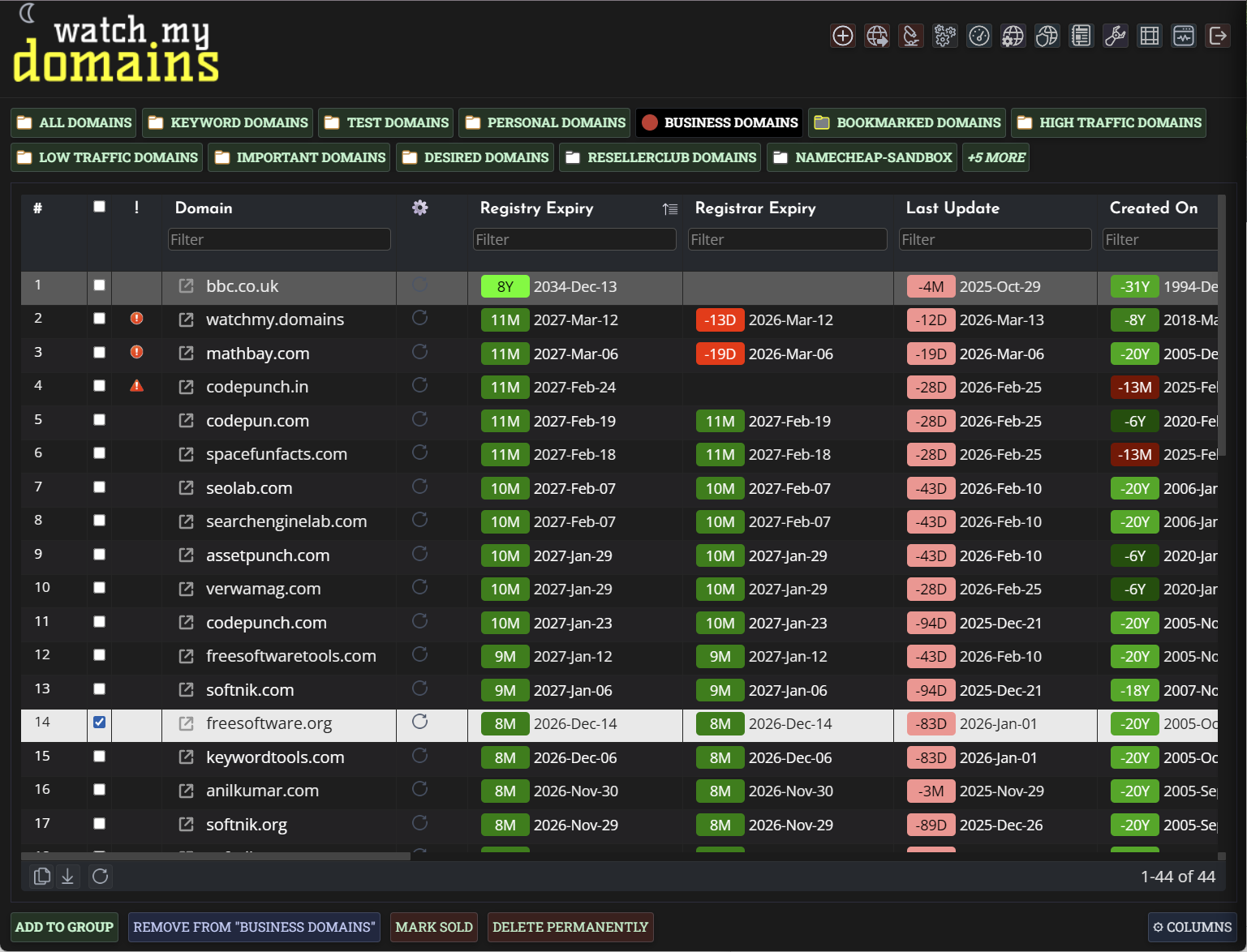
Dark Mode
The portfolio respects the application-wide dark mode setting. All panels, dropdowns, and pill colours adapt automatically.
For Administrators
Column Configuration and Persistence
Column visibility, order, and width are saved per installation and shared across all users. Column widths are saved automatically when a user resizes a column by dragging the column divider.
Available Columns
The column picker shows all domain data columns that are suitable for grid display. Custom columns you have defined in WMD settings are also available. Some system-internal columns are excluded automatically.
Category Setup for Special Buttons
The Mark Sold, Add To Ignore List, and Mark Deleted buttons appear only if categories named exactly Sold Domains, Ignored Domains, and Deleted Domains exist in the system. If a category does not exist, its button is hidden for all users. Create the categories in WMD settings to enable the corresponding buttons.
Category Layout
The category buttons can be displayed either across the top of the table or in a collapsible panel on the left side. Set this in config.php:
$PORTFOLIO_CATEGORY_LAYOUT = 'top';   // default — buttons above the table
$PORTFOLIO_CATEGORY_LAYOUT = 'left';  // buttons in a left-side collapsible panel
The left layout gives the table more vertical space and suits installations with a large number of categories. Users can collapse and expand the panel using the toggle button. The panel state is remembered per browser session.
Domains of Interest
By default, clicking All Domains in the category bar shows every domain in the portfolio. You can configure it to show only the domains returned by a specific auto-query instead — useful for focusing the default view on an actively monitored subset of domains.
Set the name of an existing auto-query in config.php:
$PORTFOLIO_DOMAINS_OF_INTEREST = 'My Active Domains';The value must match an auto-query name exactly (case-insensitive). If the named auto-query does not exist or the variable is empty, All Domains shows the full portfolio as normal. Clicking any other category button always shows that category regardless of this setting.
Nameservers Column Display Limit
The Nameservers virtual column shows all nameserver pills by default. For domains with many nameservers this can make rows tall. You can limit how many are shown with:
$PORTFOLIO_NAMESERVER_DISPLAY_LIMIT = 2;When the limit is active, only the first N nameservers are shown as pills. If a domain has more, a +N more pill appears at the end. Hovering any pill shows the full list as a tooltip. Set to 0 (the default) to show all nameservers with no truncation. This setting only affects the Nameservers column display — it has no effect on filtering, sorting, the API data, or the individual NS1–NS8 columns.
Inline Editing Configuration
Inline editing is disabled by default. To enable it, define $PORTFOLIO_EDITABLE_FIELDS in config.php with one or more field entries. Fields not listed here are never editable regardless of their type.
Each entry requires a field (the plain column name without the d. prefix) and optionally a label and type. Currently only text type is supported. The disable key can be set to true to exclude an entry without removing it.
$PORTFOLIO_EDITABLE_FIELDS = [
    [
        'field' => 'owner',
        'label' => 'Owner',
        'type'  => 'text',
    ],
    [
        'field' => 'notes_a',
        'label' => 'Notes A',
        'type'  => 'text',
    ],
];
The following fields are always blocked regardless of configuration: id, sid, domain, tld, ascii_domain, r_h_disp. Field names must contain only letters, digits, and underscores. Only users with edit rights can edit cells — users without edit rights see no editable indicators.
An editable column must also be visible in the table. If a configured field is not in the current column set, it is silently skipped. If the field name does not match any known domain column, a warning is logged to the browser console.
Category Access Control
The category bar shows only categories the current user has access to. The Add To Group panel similarly shows only accessible categories. Category membership changes made via the portfolio respect the same access controls - users cannot add domains to categories they do not have access to.
Filter Bar Configuration
The filter bar is controlled by an optional configuration file at tools/includes/config.php. A fully documented sample file is provided at tools/includes/config-sample.php — copy it to config.php and edit as needed. If no configuration file is present, the filter bar shows the built-in defaults: a Registrar text search and a Nameserver text search.
Disabling the Filter Bar
To hide the filter bar entirely for all users, set the following in config.php:
$portfolio_filters_enabled = false;If this variable is absent the filter bar is shown.
Defining Filter Fields
The $portfolio_filters array defines which filter fields appear. Each entry is an associative array with the following keys:
| Key | Required | Description |
|---|---|---|
label |
Yes | Display name for the field. Used as the field label and to generate the input's internal ID. |
group |
Yes | Group heading under which this field appears. Multiple fields sharing a group name are displayed together under one heading. |
columns |
Yes | Array of domain column names to filter against, each prefixed with d. — for example d.registrar. Multiple columns produce an OR match, useful for fields like nameservers where the value could be in any of d.ns1 through d.ns8. |
type |
No | Field type. One of text, int, float, or boolean. Defaults to text if omitted. Text fields render as a search input. Int and float fields render as a Min/Max range pair. Boolean fields render as a Yes/No dropdown. |
disable |
No | Set to true to exclude this entry from the filter bar. If absent or false the entry is active. If all entries are disabled the filter bar reverts to the built-in defaults. |
Filter Types
text — renders a search input. The entered value is matched as a substring against all listed columns. Multiple columns are combined with OR, so typing a nameserver hostname will match any of the eight nameserver columns.
int — renders a Min and Max number input. Either or both values may be filled in. Matches domains where the column value falls within the specified range (inclusive). Either end of the range is optional.
float — same as int but accepts decimal values.
boolean — renders a Yes / No dropdown. Matches domains where the column value is 1 (Yes) or 0 (No).
Grouping Fields
Fields that share the same group value are displayed together under one group heading. If a group contains only one field, the field label is suppressed and only the group heading is shown — except for int, float, and boolean fields which always show their label. If a group contains multiple fields, all labels are shown.
Column Validation
When the filter bar initialises, each filter's column names are checked against the domain columns available from the API. If a column does not exist — for example because it is a custom column that has been deleted — a red ! badge appears on the filter label. Hovering the badge shows which column names could not be found. The affected filter input is disabled so it cannot produce invalid queries. This makes misconfigured entries in config.php immediately visible without breaking the rest of the filter bar.
Example Configuration
$portfolio_filters = [
    [
        'label'   => 'Registrar',
        'group'   => 'Registrar',
        'columns' => ['d.registrar'],
    ],
    [
        'label'   => 'Nameserver',
        'group'   => 'Nameserver',
        'columns' => ['d.ns1','d.ns2','d.ns3','d.ns4','d.ns5','d.ns6','d.ns7','d.ns8'],
    ],
    [
        'label'   => 'Edited',
        'group'   => 'Status',
        'type'    => 'boolean',
        'columns' => ['d.edited'],
    ],
    [
        'label'   => 'Days To Expiry',
        'group'   => 'Expiry Range',
        'type'    => 'int',
        'columns' => ['d.days_to_expiry'],
    ],
];