Open Unicode CSV Files Correctly in Excel
If your CSV includes accented letters, non-Latin scripts, or special symbols, Excel may display “garbled” characters unless the file is opened with the correct encoding.
Below are two common ways to open a Unicode CSV correctly: importing from within Excel, or converting the file first using Notepad.
Option 1: Import the CSV Using Excel’s Data Import Feature
Important: This is the most reliable method because you can choose the encoding during import.
Open Excel and import the file using the Data tab:

- Open Microsoft Excel and create a new workbook
- Go to the Data tab
- Click From Text/CSV (or Get Data > From File > From Text/CSV)
- Select your CSV file and click Import
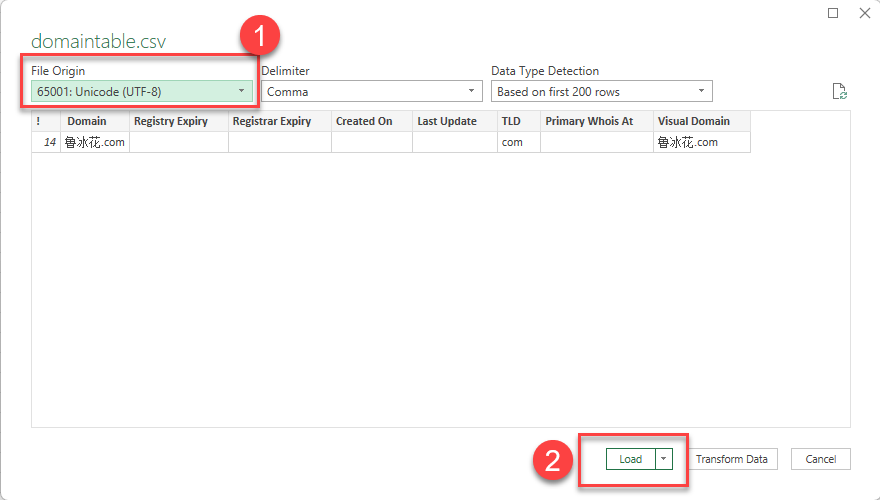
- In the preview window, set File Origin / Encoding to Unicode (UTF-8)
- Confirm characters look correct, then click Load
Option 2: Open in Notepad and Save as UTF-8 (BOM), Then Open in Excel
Important: Use this if you prefer opening CSVs directly (double-click), or if Excel import options aren’t available in your version.
First, open the CSV in Notepad:
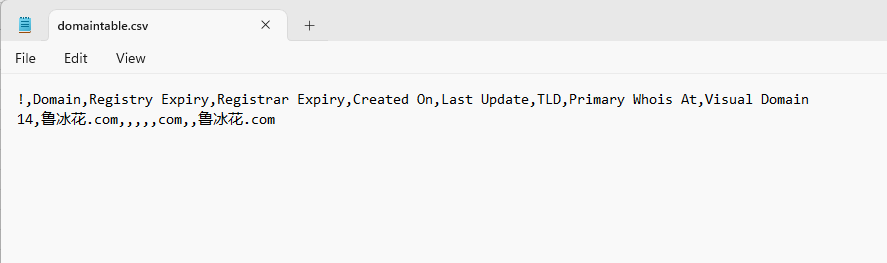
- Right-click the CSV file
- Choose Open with > Notepad
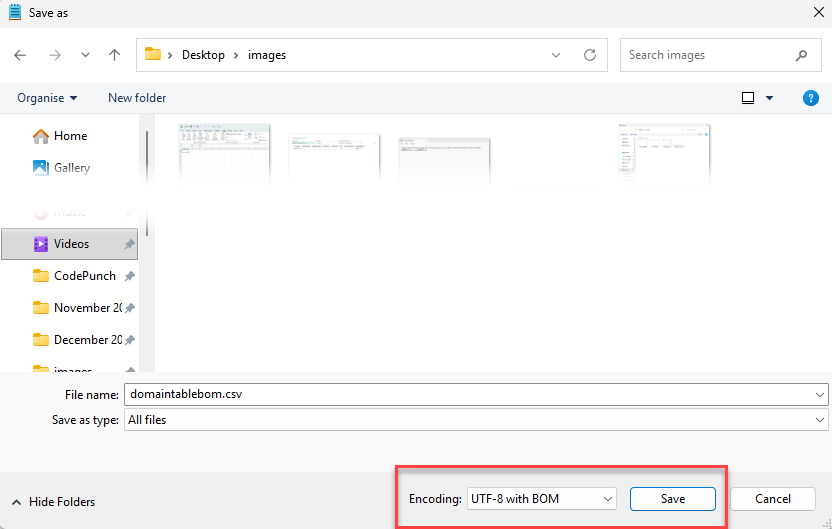
- Click File > Save As
- Set Encoding to
UTF-8 with BOM - Set Save as type to All Files
- Save the file (overwrite or save a copy)
- Open the saved CSV in Excel