
Domain Auto Query Filters
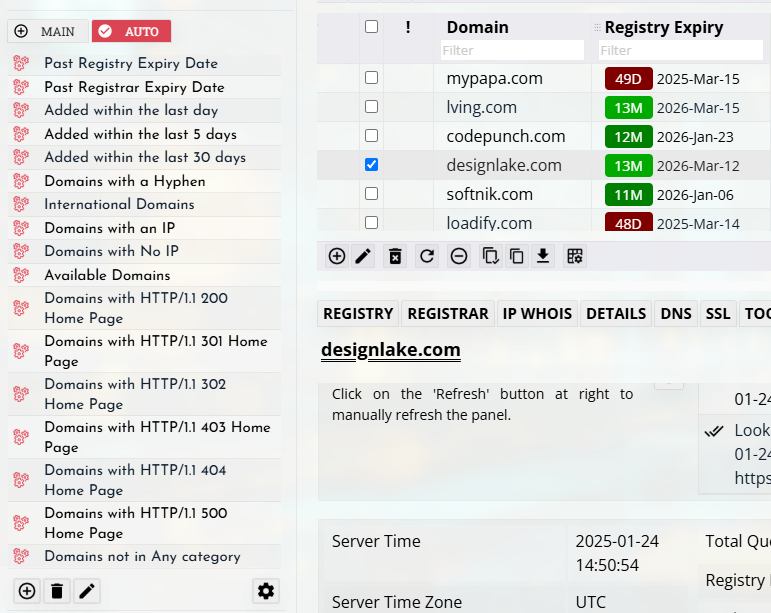
Domain Display Filters allow you to quickly display subsets of domains that match specific conditions. These filters are based on simplified SQL-style queries and are available under the Auto tab in the left pane.
Display filters are useful when working with large domain portfolios because they allow you to quickly locate domains with specific properties such as redirect behavior, DNS configuration, expiration conditions, or ownership attributes.
You can create any number of filters and modify them at any time. Each filter simply contains a query expression that is applied to the domain database to return matching results.
Creating a Display Filter
To create a new display filter:
- Open the Auto tab in the left pane.
- Click the Add button in the footer.
- Enter the query expression.
- Optionally provide parameter values if the query uses placeholders (?).
- Save the filter.
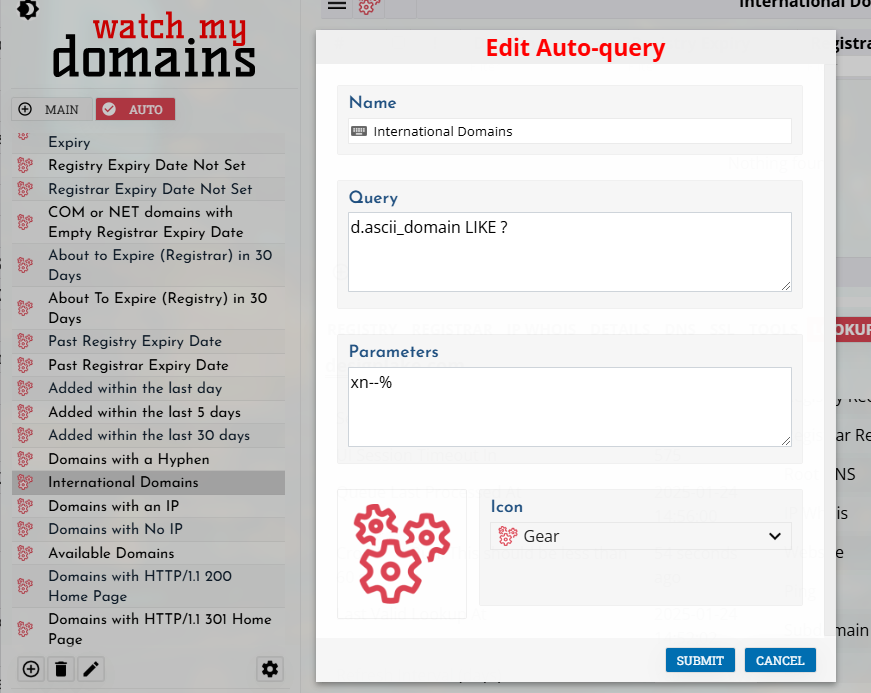
Once created, the filter will appear in the list and can be selected at any time to display the matching domains.
Example: Domains Not Assigned to Any Category
The query below lists all domains that are not assigned to any category.
d.sid NOT IN (SELECT did FROM [CATCONNTABLE])
Using Domain Columns in Filters
Display filters work by referencing domain data columns. These columns store information about each domain such as DNS data, HTTP status, ownership details, expiration dates, and lookup results.
Examples of commonly used columns include:
- domain
- ip
- home_page_status
- registrar_expiry
- redirect_urls
For a complete list of available columns, see:
You can also view the currently available columns directly inside the application by going to:
Admin > Settings > Domain Columns
Query Syntax
Display filters use a simplified SQL-style syntax. Most common SQL comparison operators can be used.
- = equal to
- NE not equal to
- GT greater than
- LT less than
- LIKE pattern matching
- AND logical AND
- OR logical OR
Queries can also include parameter placeholders (?). The actual values are then entered in the parameters section.
Why Alphabetic Operators Are Preferred
Watch My Domains SED supports common comparison operators such as =, <, >, <=, and >=. However, these symbols are discouraged when writing display filters.
Raw symbols like <= or >= may technically work inside filters, but they can cause problems when filters are saved, shared, or executed through scheduled jobs. In these situations the symbols may be URL-encoded (for example %3C%3D or %3E%3D), which can lead to parsing or execution issues.
To avoid these problems, it is recommended to use the alphabetic operator codes. These operators are portable, encoding-safe, and easier to handle when filters are stored or transmitted.
- EQ – equal to
- NE – not equal to
- GT – greater than
- LT – less than
- GE – greater than or equal to
- LE – less than or equal to
Built-in Short Codes
Watch My Domains SED also supports a number of built-in short codes that simplify common filtering tasks. These are not standard SQL but special shortcuts understood by the system.
Short codes are enclosed in square brackets and can be used directly inside display filters.
Category Filters
You can reference categories directly using the following syntax:
- [IN_CategoryName] – domains inside the category
- [NOTIN_CategoryName] – domains not in the category
Example:
[IN_Parked Domains] OR [IN_Business Domains]
This filter will list domains belonging to either category.
Example:
[NOTIN_Parked Domains] AND [NOTIN_Business Domains]
This filter lists domains that are not assigned to either category.
Date Short Codes
Some filters support date-based short codes that represent relative dates.
- [TODAY] – today’s date
- [TODAY+] – future dates
- [TODAY-] – past dates
These shortcuts are useful when building filters related to domain expiration or activity dates.
Example Filters
Domains Expiring Within the Next 60 Days
The following filter lists domains whose registry_expiry date falls within the next 60 days. This example uses the [TODAY+] short code, which represents today's date and future dates.
Query
registry_expiry GE [TODAY] AND registry_expiry LE [TODAY+60]
This filter returns domains that expire between today and 60 days from today. Please note that this compares the registry expiry date.
Domains With HTTP Redirects
The following query lists domains that return either HTTP 301 or HTTP 302 responses.
Query
d.home_page_status LIKE ? OR d.home_page_status LIKE ?
Parameters
%301%
%302%
Domains With Redirect URLs
To list domains that redirect to another URL, check that the redirect URL field is not empty.
Query
redirect_urls IS NOT NULL AND redirect_urls NE ?
Parameters
EMPTY
The keyword EMPTY is a special value used by Watch My Domains SED to represent an empty string.
Domains With Specific Landing IP Addresses
Query
d.ip = ? OR d.ip = ?
Parameters
200.199.198.197
200.201.202.203
Domains Not Using Specific IP Addresses
Query
d.ip NE ? AND d.ip NE ?
Parameters
200.199.198.197
200.201.202.203
Understanding Redirect Columns
The home_page_status column stores the sequence of HTTP responses encountered when loading a domain.
Example:
HTTP/1.1 301 Moved Permanently;HTTP/2 403
This means the initial request returned a 301 redirect, and the redirected page then returned a 403 response.
If a webpage performs redirects using JavaScript instead of HTTP headers, the HTTP response will typically remain HTTP/200.
Redirect URL Fields
Two columns store redirect information:
redirect_last_url
redirect_urls
The redirect_urls column may contain multiple URLs separated by semicolons.
https://www.cnn.com/;https://edition.cnn.com/
Tips for Building Filters
- Start with simple queries and expand them gradually.
- Use parameters (?) when comparing multiple values.
- Combine conditions using AND and OR.
- Test queries on a small subset of domains before relying on them in production.
- Use the Domain Columns page to find the exact column names used by the system.
Display filters are a powerful way to quickly identify domains that need attention, such as domains with redirects, incorrect DNS configurations, expiring registrations, or missing data.
