
Adding and or Removing Domains and other records
Domain Management Overview
Adding Domains Manually
To add domains to your database, simply click the + button on the right menubar or in the grid (see the screen shot below).
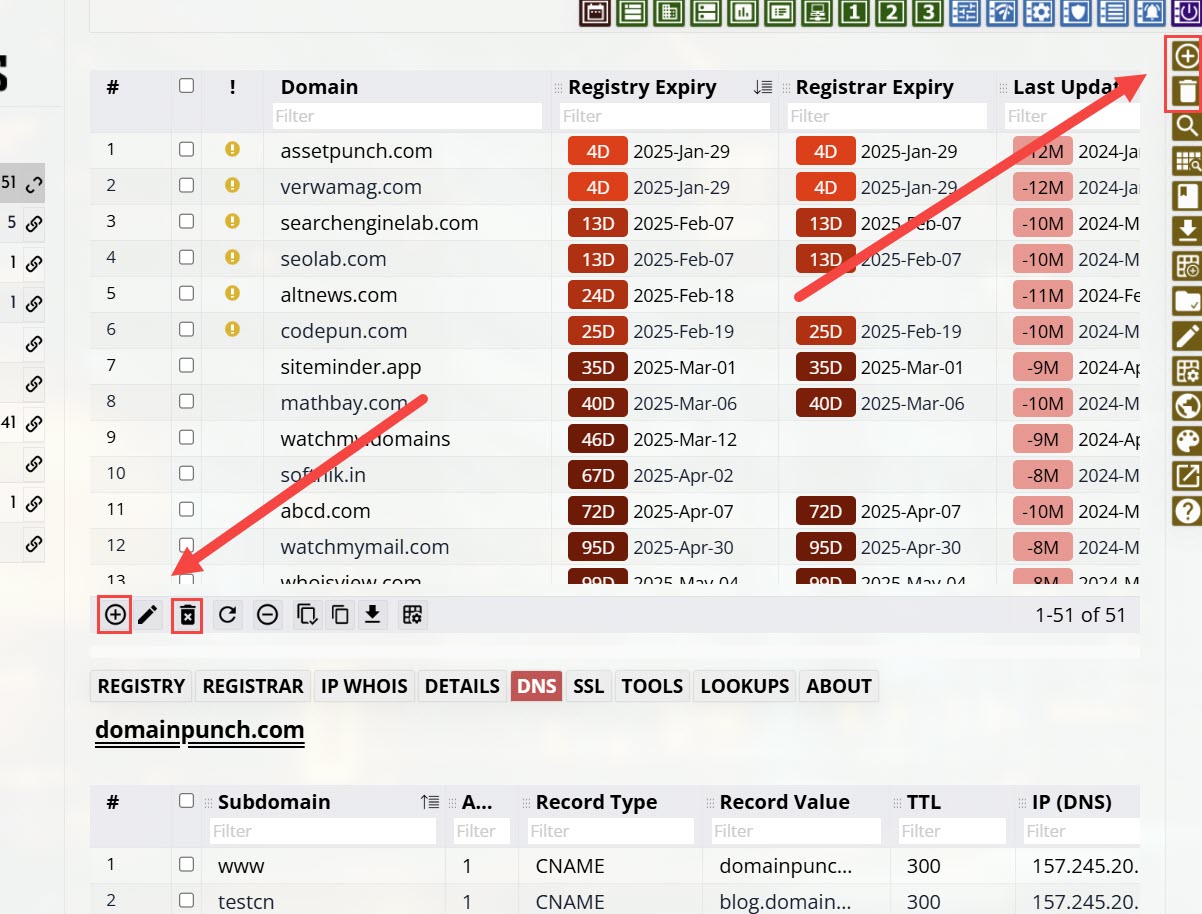
This will popup a dialog box that will allow you to enter the domain names. If you have a domain list in a text file, you can open it in any text editor and copy it's contents to the clipboard. Then right click within the dialog box's editor area and select 'Paste'. Click OK.
Subdomains are automatically parsed and added as subdomains. If, for example, you enter
mac.softnik.com
The domain softnik.com will be added to the database and mac will be added as a subdomain to softnik.com
Adding Domains From Registrars and Third Party Services
You can import domain names from your registrar, DNS provider or the previous version of Watch My Domains SED. To do this you must first login as an administrator and configure the registrars and data sources.
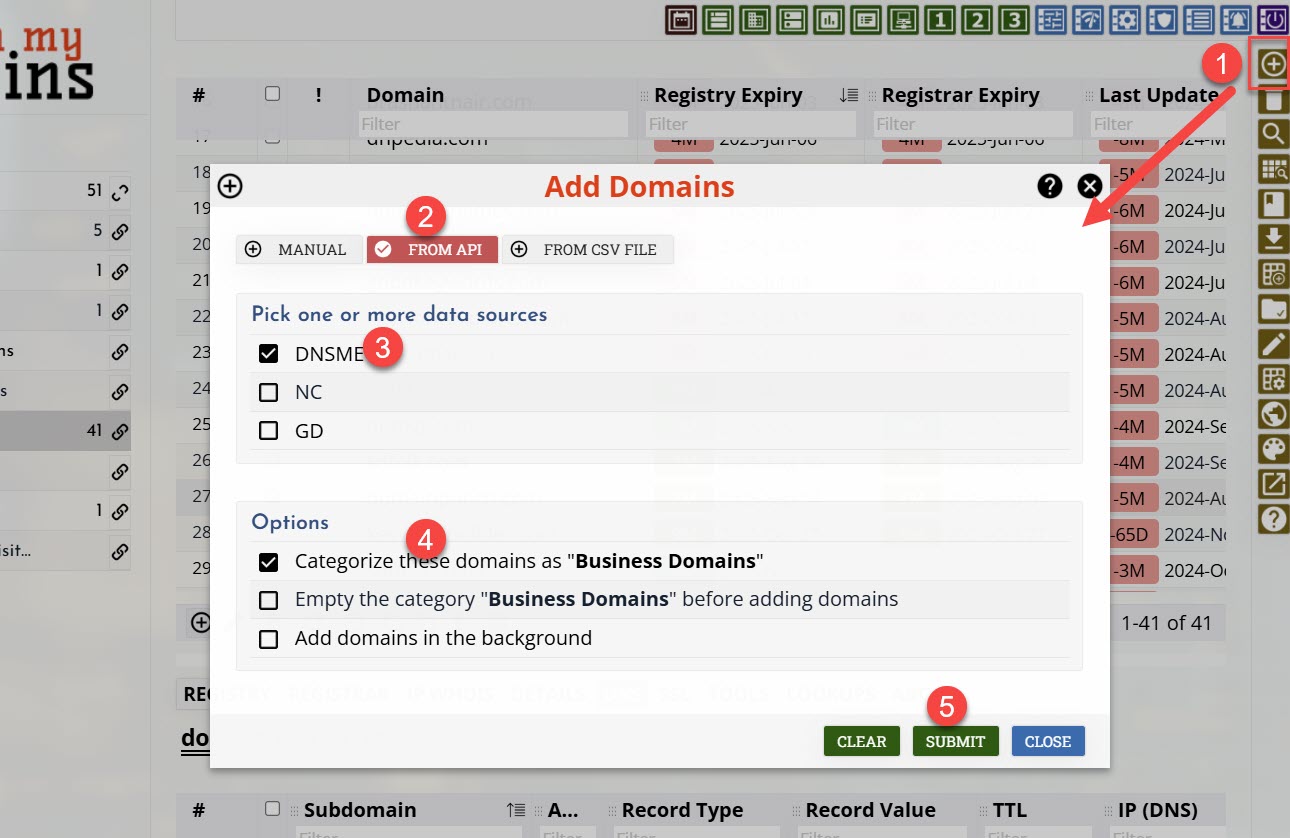
Remember to check the add domains in the background box if you have a large number of domains to import. Only a limited number of domains will be imported if you don't do this because web scripts will timeout after a set interval.
Importing Data and Domains from a CSV File
You can also import domain names and data using a CSV file. To import only domain names, create a text file containing all the domain names you want to import. Make sure that each line in the file contains a domain name and nothing else. If you list contains IDNs, save the file using "UTF-8 without BOM" encoding. Now use the 'upload CSV' button to import the data into the database.
To import additional data (custom column data, notes, etc.), prepare a CSV file with the header columns as the first line. The header column names should match your domain database fields. If you create a custom column called...
The Invoices
... the corresponding database field will be
the_invoices
In your CSV file, the column header could be 'the_invoices' or 'The Invoices'. Anything else will not work. You can use the 'Basic App Setup' button to inspect the actual database field names.
Remember to select the right separator in the upload dialog. If your CSV uses semicolons to separate the columns, make sure that you select 'Semicolons' in the dialog.
Below is a typical CSV file for uploading data.
#,Domain,Registry Expiry,TLD,notes_a
1,domainpunch.com,Sep-04-2027,com,1
2,softnik.info,Oct-05-2026,info,2
3,softnik.mobi,Sep-29-2026,mobi,78
4,trayalert.com,Sep-18-2027,com,54
5,trayalerts.com,Sep-18-2027,com,ലാറ്റിൻ
You can use any custom columns you want in the CSV. However these columns should be created in the database first. Otherwise the missing columns will be ignored during CSV import.
Domain Parsing and Validation
Public Suffix Lists & Second Level Domains
The Public Suffix List (a Mozilla initiative), also known as effective top-level domains (eTLDs), is a catalog of all domains under which Internet users can (or historically could) directly register names. Watch My Domains SED uses the list to properly parse URLs and domain names.
There are third party second level domain name registrations that are excluded from the
public suffix list. Some examples of these are uk.com, bd.com,
etc. In such cases the application will parse these entries differently and you will not be
able to actually add your domains. In such cases you can force add the domains by
wrapping them in square brackets ([]). For example,
[abcd.uk.com]
[example.bd.com]
Another solution is adding your suffixes to the local suffix list. You can do this from the 'Administration' module.
Removing the Domains
Delete From Entire Portfolio
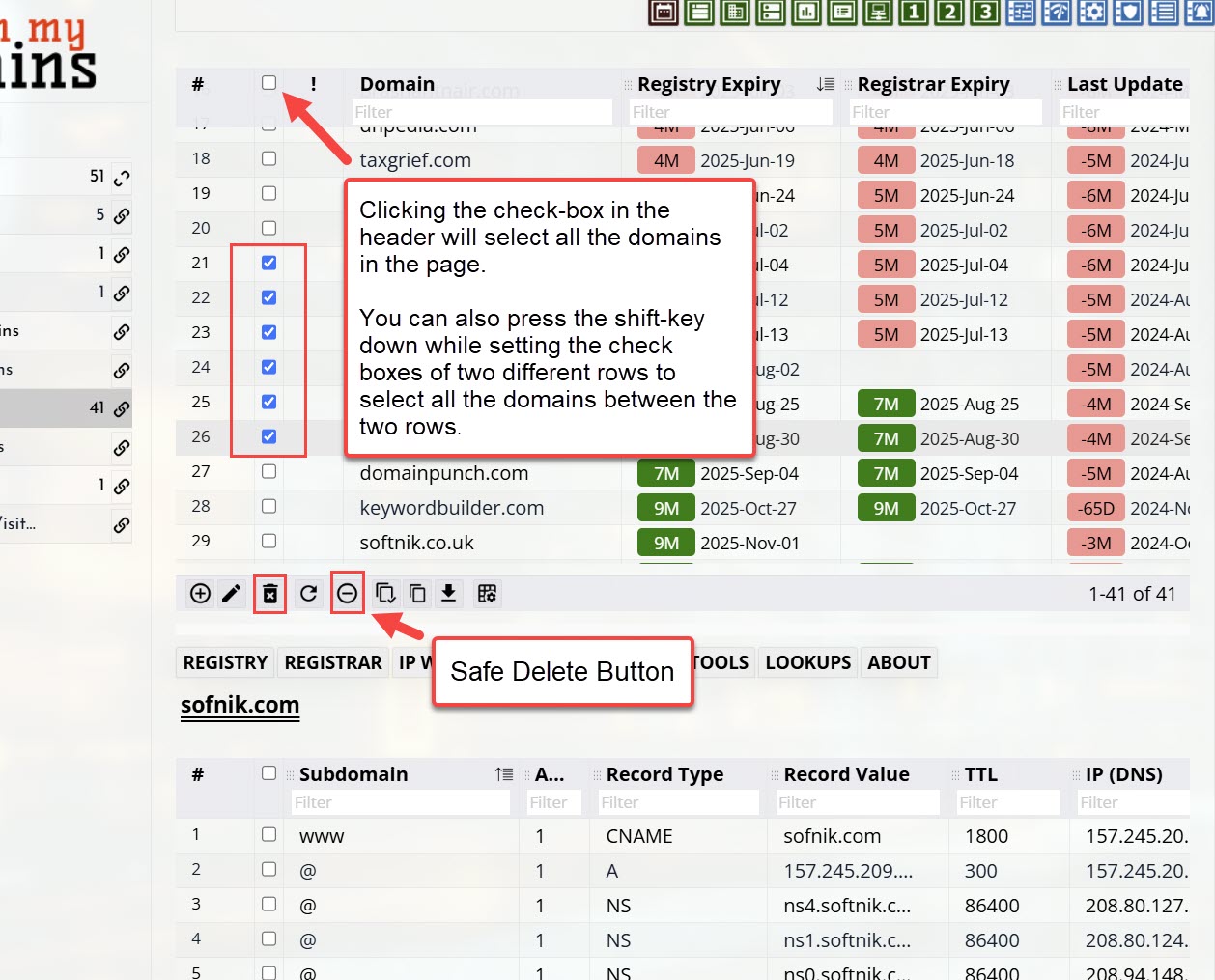
Select all the domains you want to delete from your portfolio by checking the boxes on the left and then click the 'Recycle Bin' icon (please see the screen shot).
Safe Delete Domains
The Safe Delete option allows you to delete only those domains that belong exclusively to the currently active category. If a selected domain is associated with more than one category, it will not be deleted.
When viewing domains within a category you have access to, you may encounter domains that you want to remove. However, those same domains may be used by other users or linked to additional categories that are important elsewhere in the portfolio. The Safe Delete option prevents such shared domains from being accidentally removed, ensuring that domains in use by other categories remain intact.
