
Filtering Domains Using the Column Filter
Filtering Basics
You can filter domains (and other columns) by using the filter box at the top of a column.
By default, the column filter matches values that start with the text you enter.
For example, entering:
web
...will return domains such as webtools.com, but not domains where web appears later in the name.
Filtering Domains That Contain a String
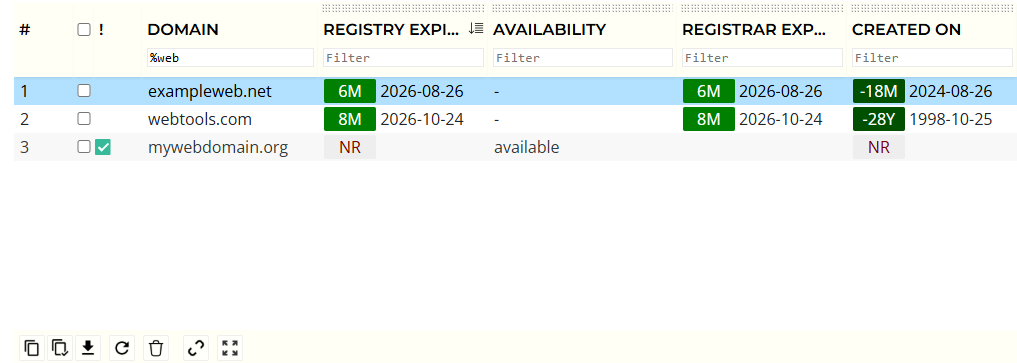
To filter on domains (or other columns) that contain a specific string, you can use the % character as a wildcard.
For example, to show all domains that contain web, enter:
%web
This will match domains such as:
webtools.com
mywebdomain.org
exampleweb.net
Using % allows the filter to match text that does not appear at the start of the value.
Checking for Available Domains
Domain availability is stored in a column called Availability. When a domain is available, this column is set to available.
To avoid confusion caused by available domains displaying blank registry data, an NR indicator is shown in certain registry-related columns (such as Registry Expiry). This indicator is for display purposes only and is not filterable.
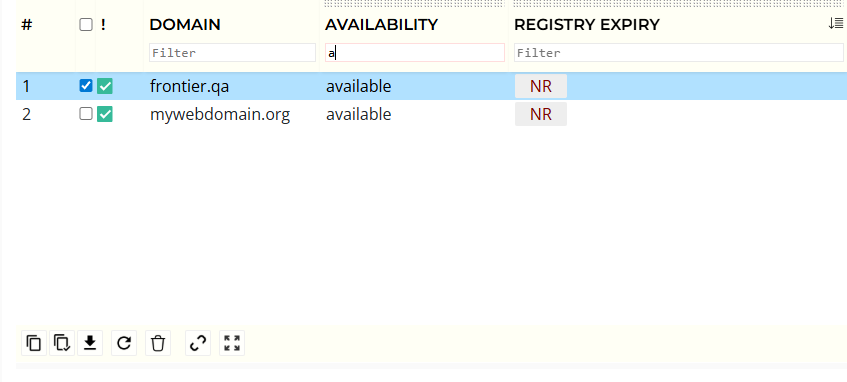
To filter and view only available domains, enable the Availability column and filter on it directly. Please see Setup Domain Columns for more information.
- Open Domains > Setup Columns
- Enable the Availability column
- Use the filter box at the top of the Availability column
- Enter: available or a
This will filter the list to domains with an Availability value of available.
